# Configure Proxy

{% hint style="success" %}
To ensure smooth functionality, our proxies operate through port forwarding, which requires our dedicated application. Follow this step-by-step guide to configure and manage your proxies effectively.
{% endhint %}

<figure><img src="/files/JLXMiwfbzVfPNwApxXqe" alt=""><figcaption></figcaption></figure>

## 1. Accessing the Proxy List

{% stepper %}
{% step %}
Open the **9Proxy app**
{% endstep %}

{% step %}
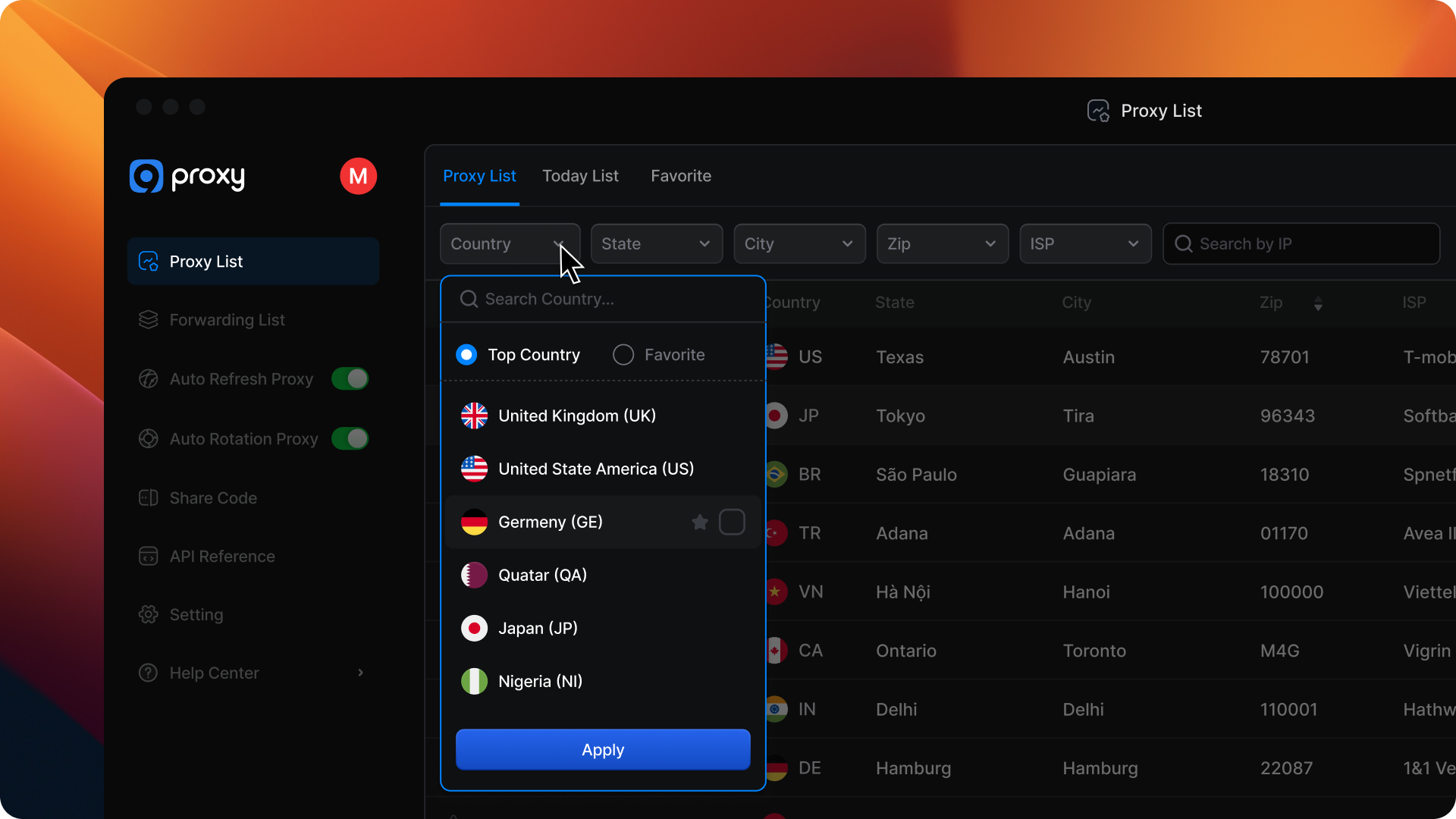
Navigate to the **Proxy List** section.

<figure><img src="/files/pRHdHw5ZYP0TgO8dd6LX" alt=""><figcaption></figcaption></figure>
{% endstep %}

{% step %}
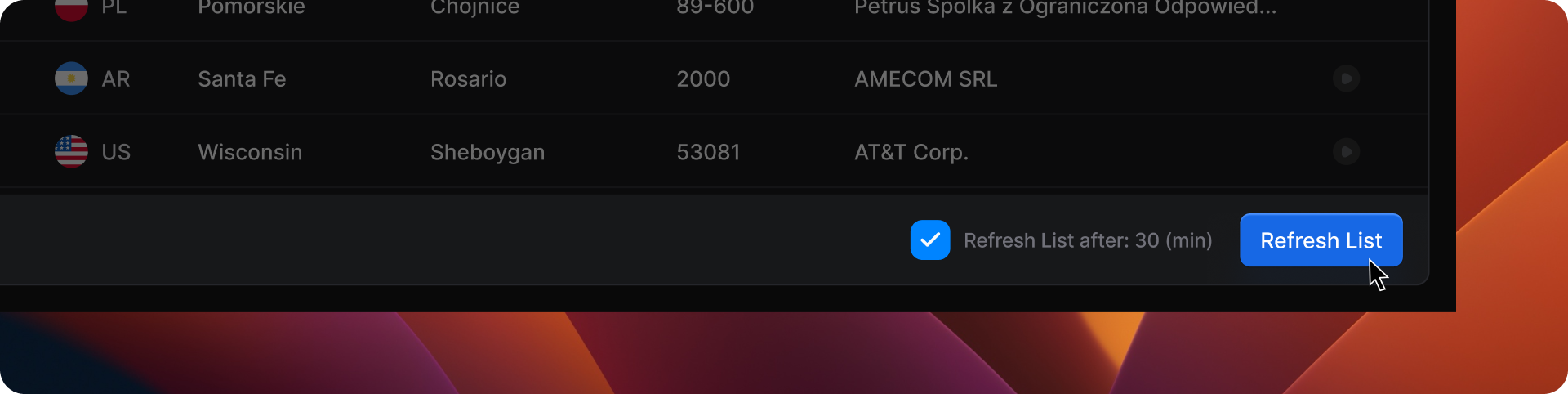
Browse the available proxies and select one that fits your needs. If you want more options, click **Refresh List** to load additional proxies.

<figure><img src="/files/DYjnxDx31BCvhIJpit9O" alt=""><figcaption></figcaption></figure>
{% endstep %}
{% endstepper %}

{% hint style="success" %}
**Note**: You can configure your proxy with precise geolocation targeting by selecting specific countries, cities, states, ZIP codes, or ISPs. This ensures optimal performance and accuracy for your use case.
{% endhint %}

## 2. Configuring Proxy Forwarding

{% hint style="success" %}
**Tip**: Before proceeding, ensure that you have [configured a valid port range](/getting-started/residential-proxy-by-ips/for-macos-windows/set-up-a-custom-port-range.md). This allows proper allocation and management of proxy connections within your setup.
{% endhint %}

* To use a proxy, you must first forward it to a designated port.
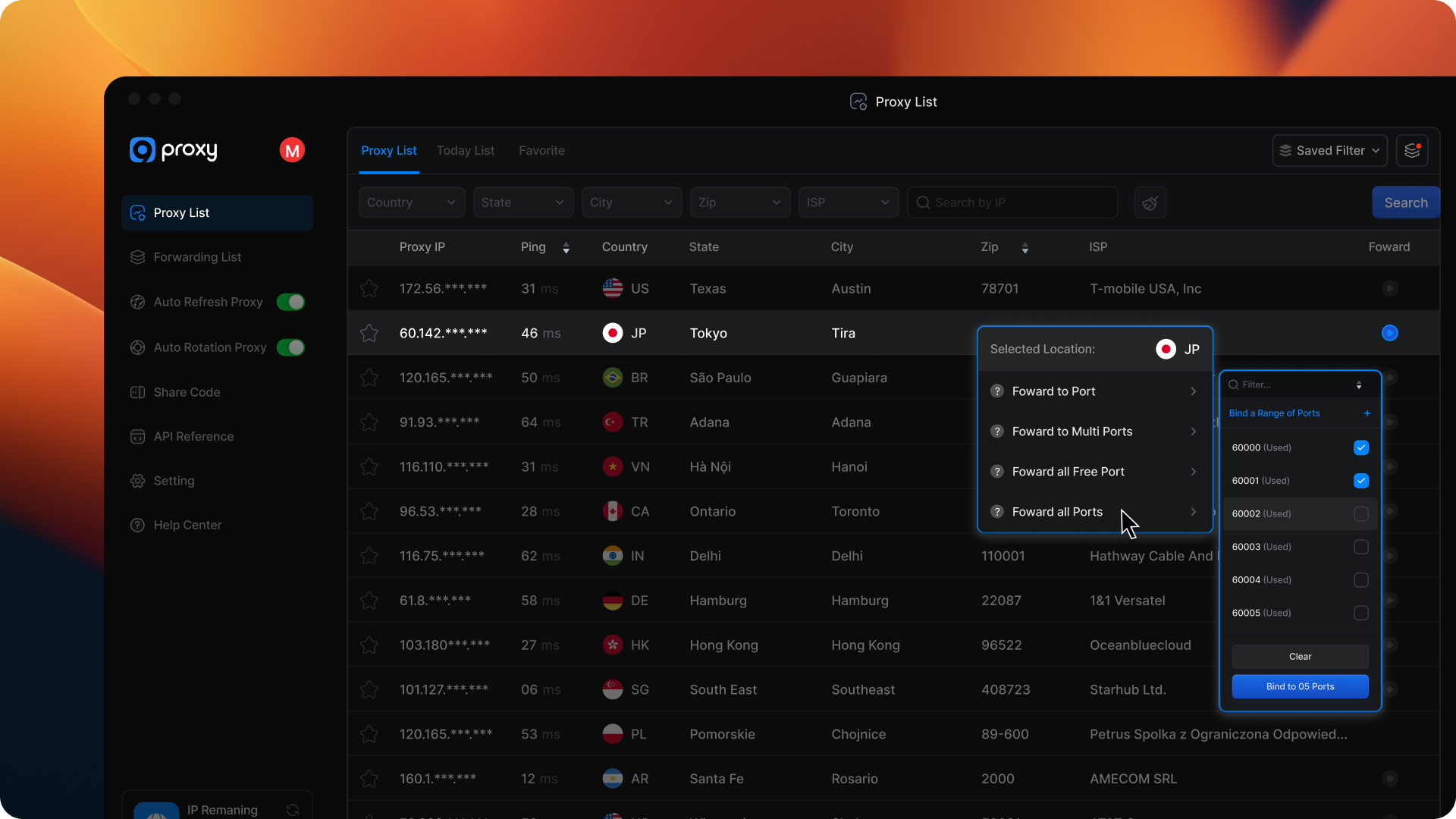
* Right-click on your selected proxy OR click the icon ![](https://lh7-rt.googleusercontent.com/docsz/AD_4nXfQPmUWQJ-CNgcOgGED_fTazjCRQP-nRtn3ij_4EPfVVM6f0N9O1Fy5rqgAYrd3UVLibomn75vAA--KV6vAJ3nwbRyc1UPSQBzPaEgUndDW7alWpfiR80pzG7sKaKYioj-WR44RXQ?key=spbkq0hgzw2HbaDGxKNF9Zi8)→ Choose one of these options:

<figure><img src="/files/f6vgPiiedBGffM5731pf" alt=""><figcaption></figcaption></figure>

<table data-header-hidden><thead><tr><th width="259"></th><th></th></tr></thead><tbody><tr><td><strong>Forward to Port</strong></td><td>Assigns a proxy to a single port.</td></tr><tr><td><strong>Forward to Multiple Ports</strong></td><td>Assigns multiple proxies to multiple ports.</td></tr><tr><td><strong>Forward to Free Ports</strong></td><td>Automatically assigns proxies to unused ports in your range.</td></tr><tr><td><strong>Forward to All Ports</strong></td><td>Assigns proxies to all ports in your range (including used and free ports).</td></tr><tr><td><strong>Forward to Configured Ports</strong></td><td><p>Assigns proxies only to pre-configured ports. </p><p>You must configure the port settings before selecting this option.</p></td></tr></tbody></table>

After successfully forwarding proxies to ports, navigate to the **Forwarding List** section on the left side. Here, you will find detailed information about the proxies you port-forwarded, their assigned ports, and their current status.

{% hint style="success" %}

### NOTE

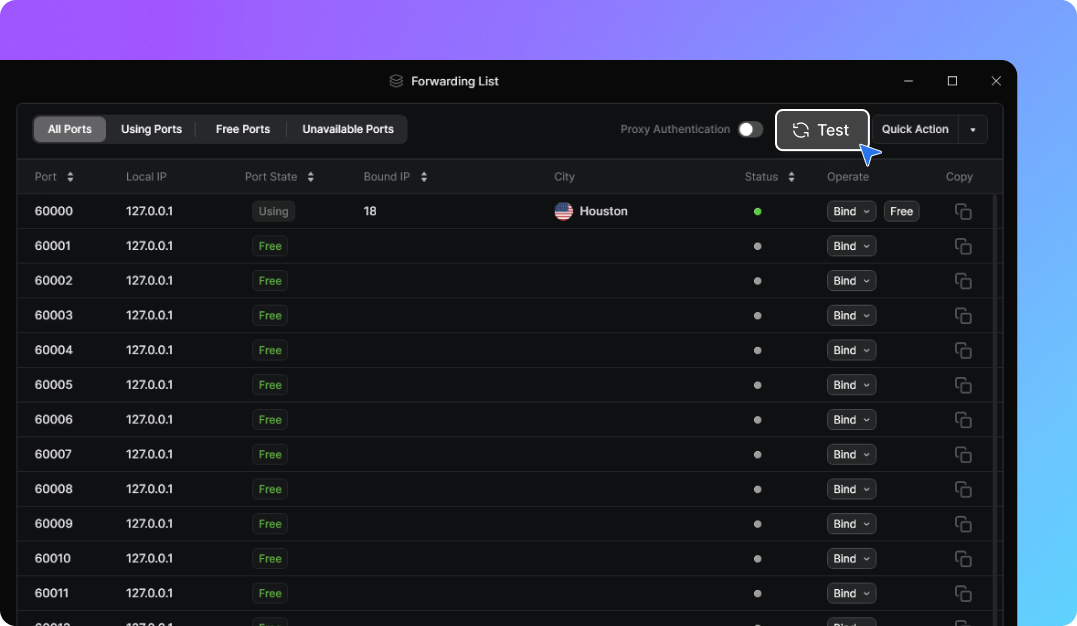
To verify that your proxy is active and functioning correctly, click **Test** next to the proxy entry to perform a real-time status check. If the test is successful, your proxy is ready to use.
{% endhint %}

Once confirmed, copy the **local IP** and **port** and configure it in your proxy-supported software, browser, or extension.

### Proxy Authentication

By default, your proxies can connect directly through local ports without requiring username and password authentication.

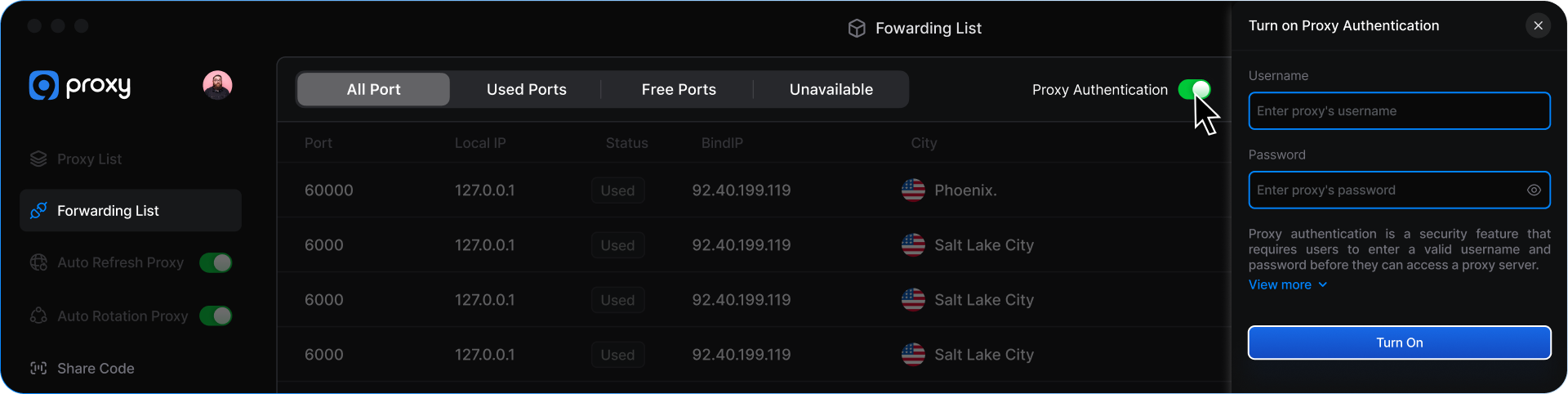
If you prefer to restrict proxy access or use credential-based login, you can enable **Proxy Authentication** in the **Forwarding List.**

<figure><img src="/files/v8ZfHWpxdKwbBq7EoSZS" alt=""><figcaption></figcaption></figure>

## 3. Forwarding List

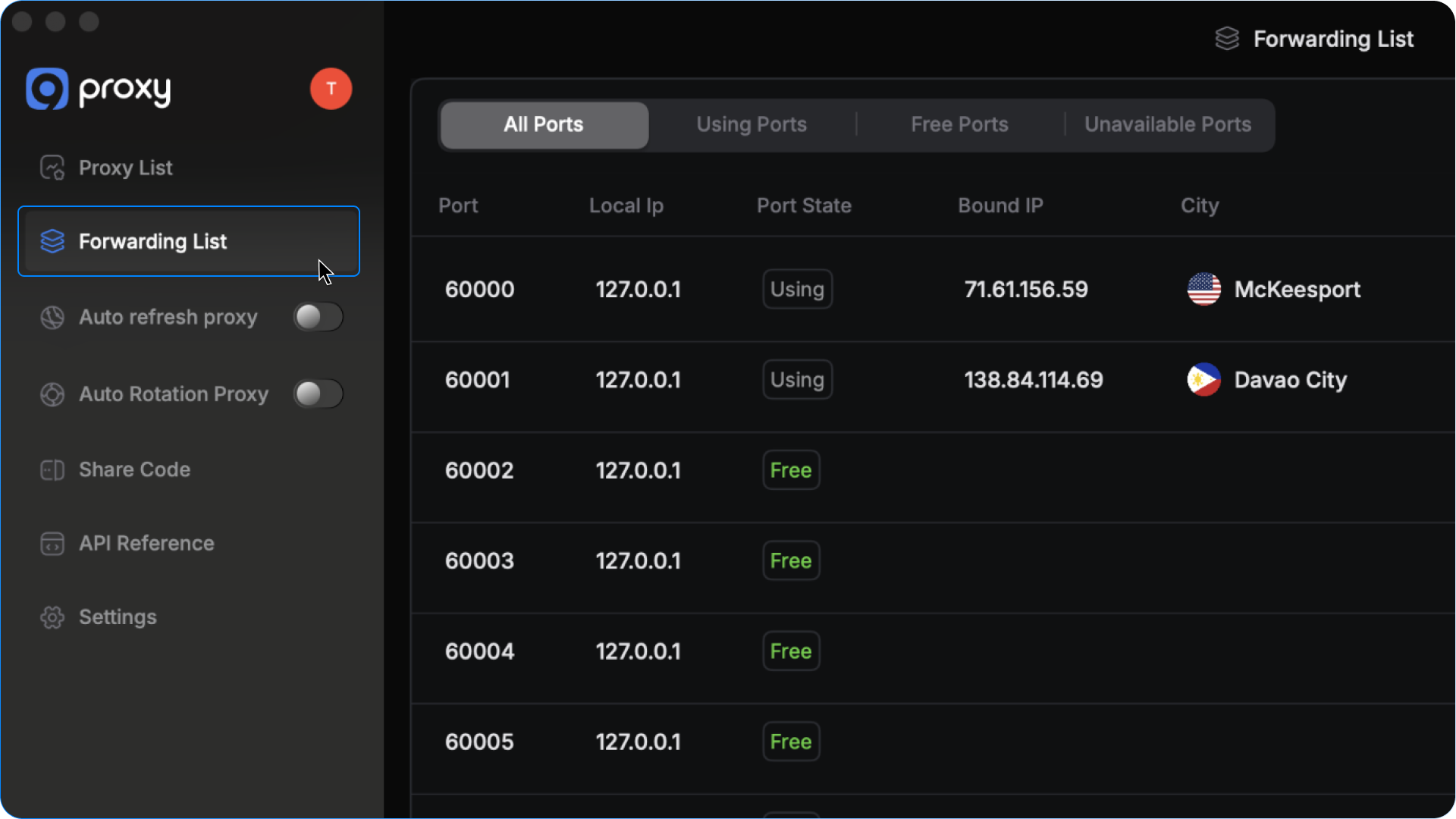
After successfully forwarding proxies to ports, navigate to the **Forwarding List** section on the left side. Here, you will find detailed information about the proxies you port-forwarded, their assigned ports, and their current status.

<figure><img src="/files/zw2I4NdFzDOKXZS2CON9" alt=""><figcaption></figcaption></figure>

{% hint style="info" %}
Note: To verify that your proxy is active and functioning correctly, click Test next to the proxy entry to perform a real-time status check. If the test is successful, your proxy is ready to use.
{% endhint %}

<figure><img src="/files/14duhOZHkFsrIj3w2XwF" alt=""><figcaption></figcaption></figure>

## 4. Test Proxies with Proxy Check

The **Proxy Check** feature allows you to test proxies directly inside the 9Proxy App - quickly and accurately.

To run a test:

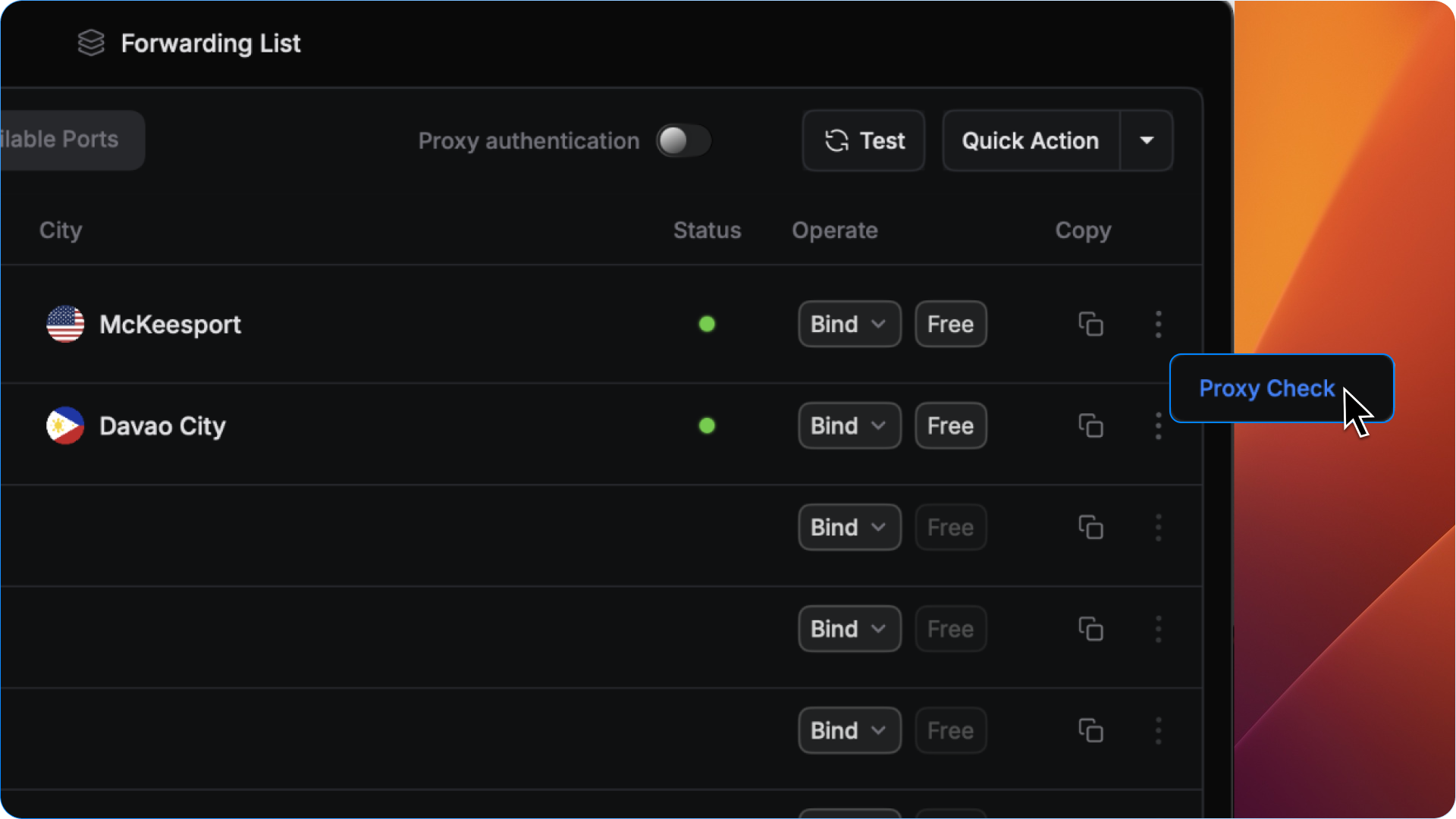
* Click the three-dot icon next to the proxy you want to test.
* Select **Proxy Check**.

<figure><img src="/files/14fMjmZuLcTtXv0r4KJb" alt=""><figcaption></figcaption></figure>

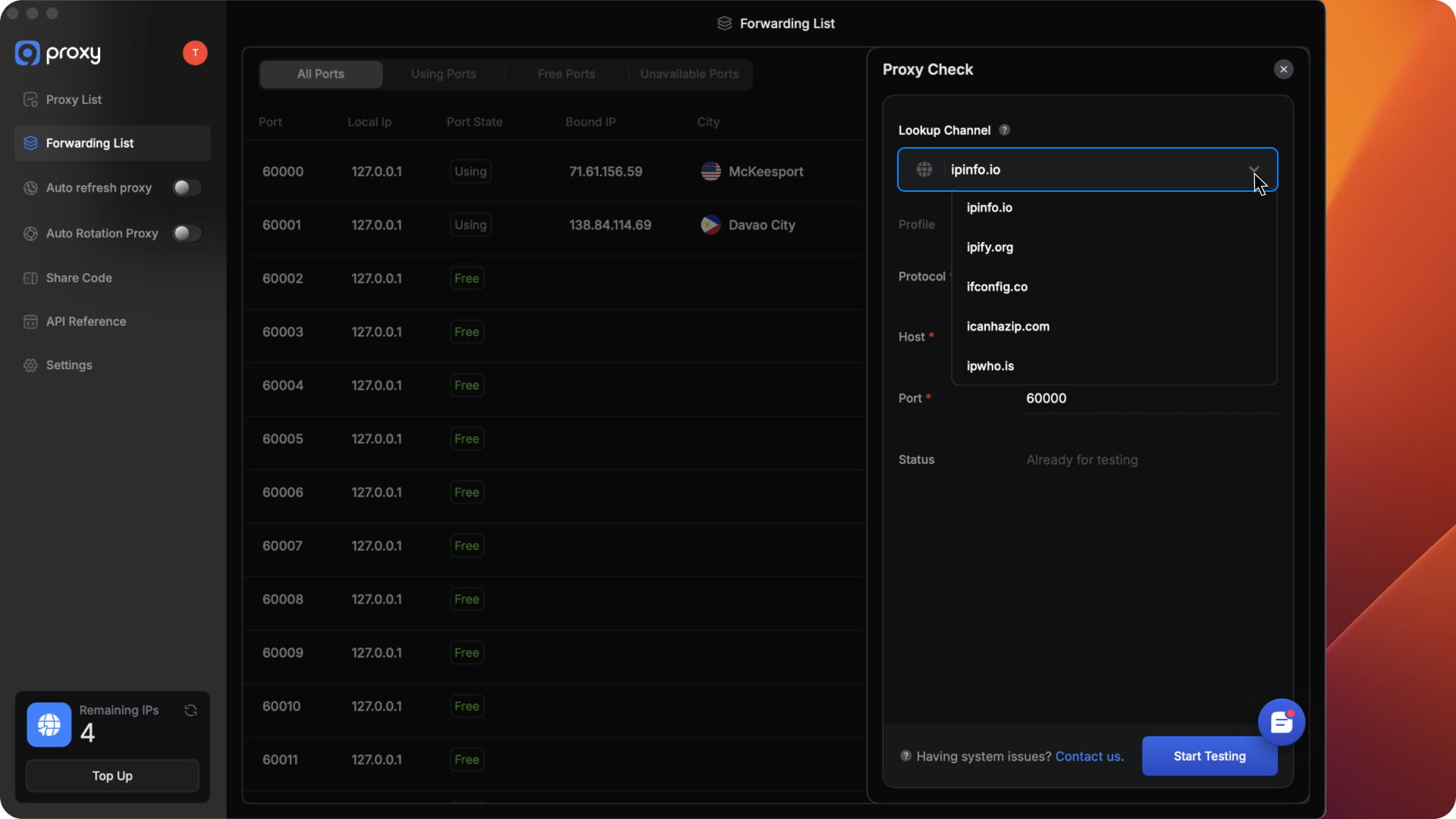
* Choose a **Lookup Channel**.

<figure><img src="/files/IHnxfCVImvQW0Tpaztm3" alt=""><figcaption></figcaption></figure>

* Click Test to confirm that your proxy is working properly before starting your tasks.

**Result**: If the test passes, your proxy is successfully connected and ready to use.&#x20;

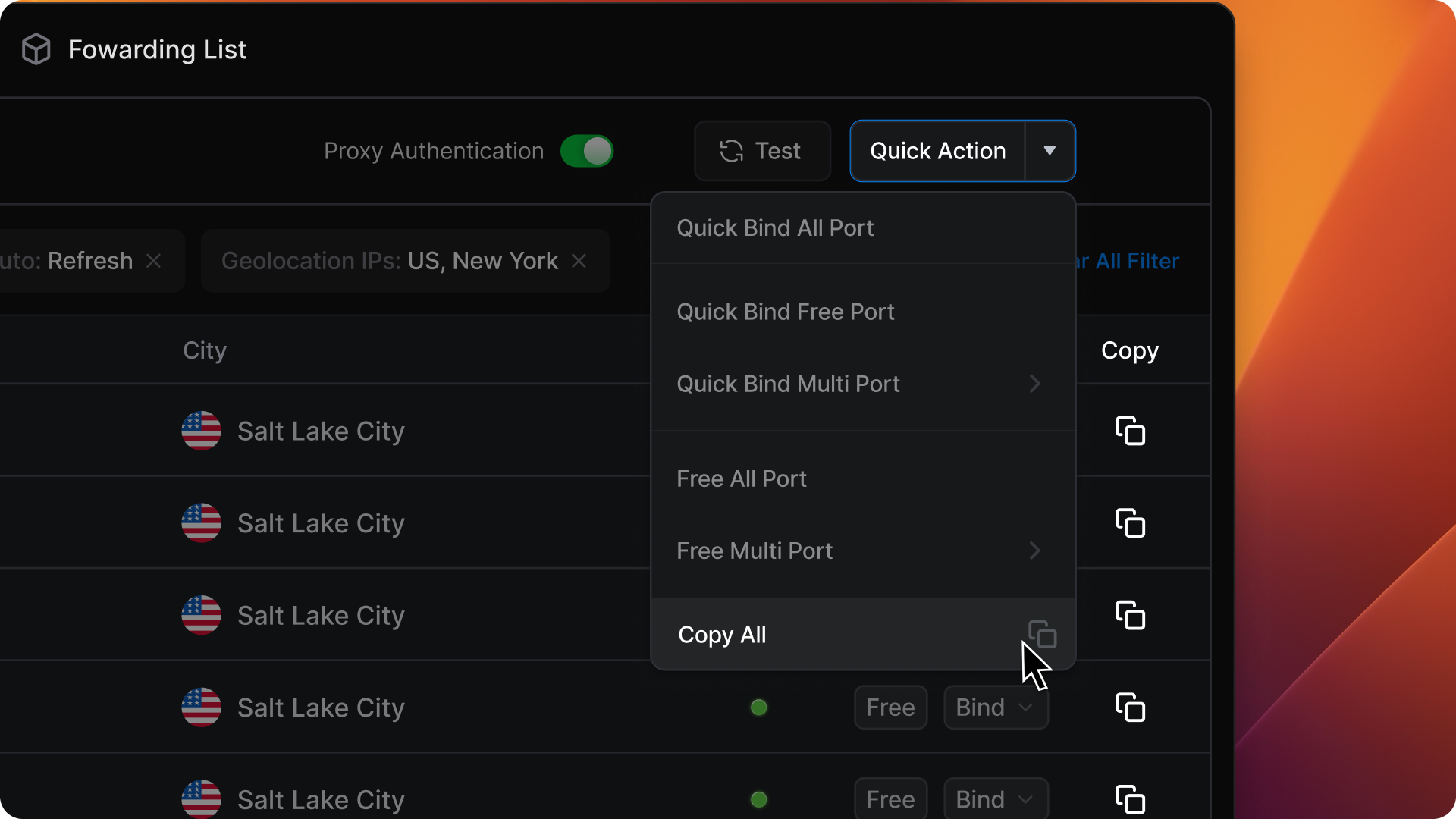
Click the **Copy** icon next to any proxy you want to use to quickly copy its `localhost`, `port`, `username`, and `password` (if available). If you need all of them, simply click **Copy All** to copy every proxy’s details at once.

<figure><img src="/files/siLs62YzJY0UtuBsCgs1" alt=""><figcaption></figcaption></figure>

## 5. Managing Your Proxies Efficiently

{% columns %}
{% column width="50%" %}

#### Today List

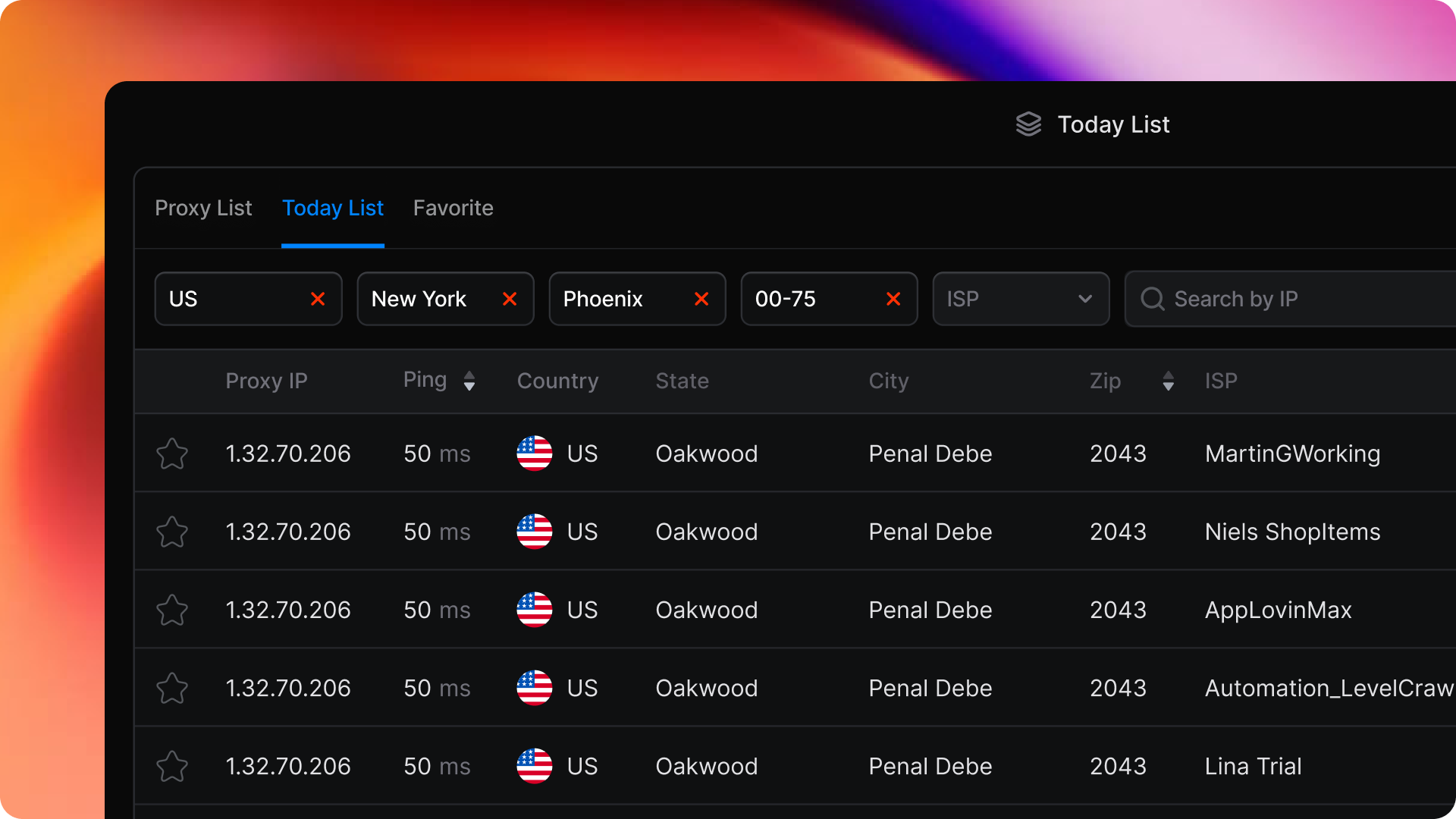
The **Today List** displays the proxies you have used in the last 24 hours since you initially forwarded them to a port. If any of these proxies become active again during this period, you can continue using them at no additional cost.

To verify their current availability, click Test to check their real-time status.

After 24 hours, proxies that are no longer in use will automatically be removed from the list.
{% endcolumn %}

{% column width="50%" %}

<div align="right"><figure><img src="/files/sQsNL9Oypz20DOqMyIj5" alt=""><figcaption></figcaption></figure></div>
{% endcolumn %}
{% endcolumns %}

{% columns %}
{% column %}

#### Favorites

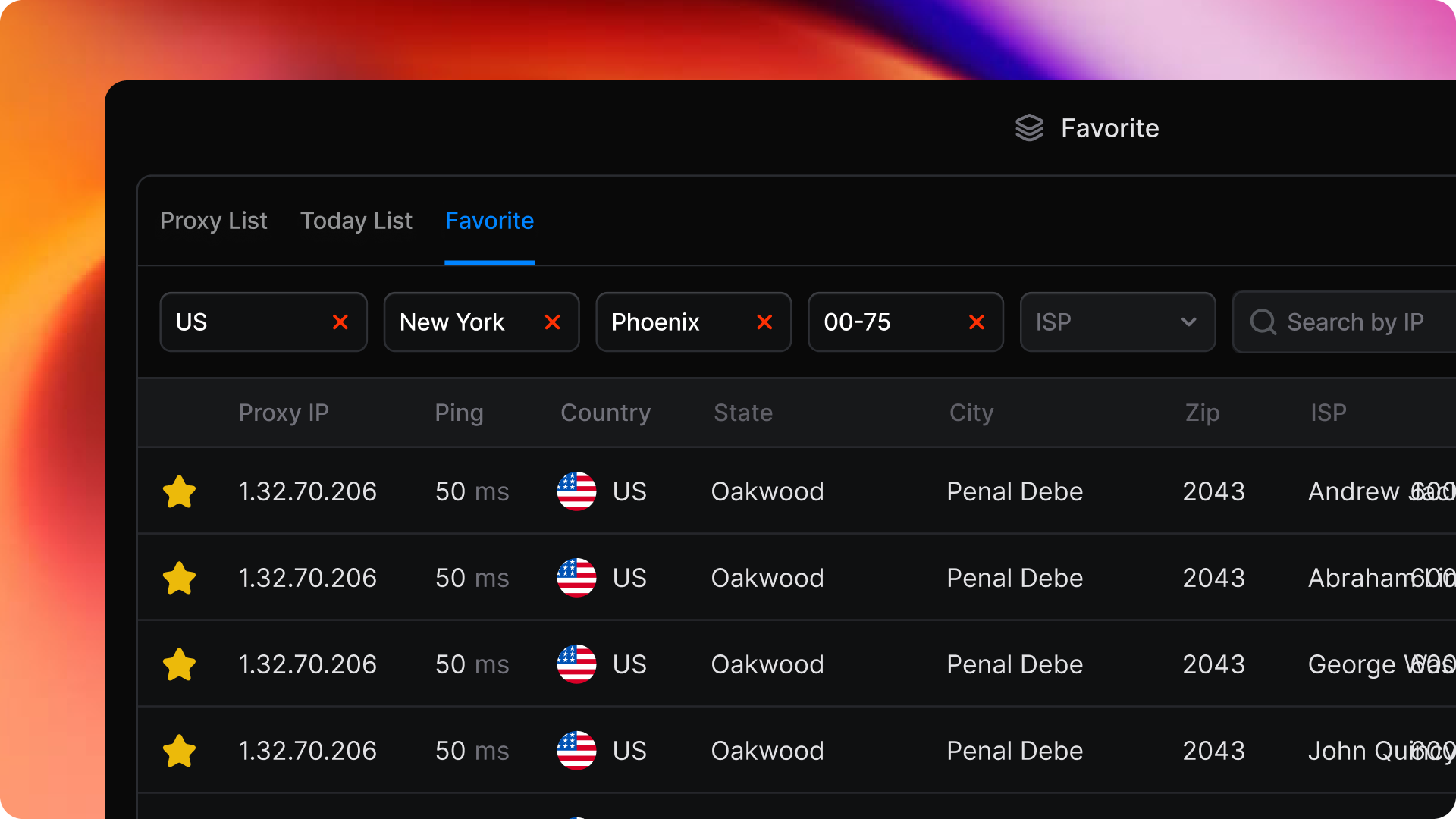
The **Favorites** feature allows you to save the IP addresses you prefer, making it easier to find and access them later.

How to Save Proxies to Favorites

* Open the **Proxy List** or **Today List** in your dashboard.
* Click the "☆" (star) icon next to the proxy you want to save.
* Once marked as a favorite, the star will turn yellow (★), indicating the proxy is now in your Favorites list.
  {% endcolumn %}

{% column %}

<figure><img src="/files/7zvWaFMV41z0rMnMCxaI" alt=""><figcaption></figcaption></figure>

{% endcolumn %}
{% endcolumns %}

{% columns %}
{% column %}

#### Support Channels:

{% endcolumn %}

{% column %}

* **Email**: <support@9proxy.com>
* **Live Chat**: Available on[ 9proxy.com](https://9proxy.com)
* **Telegram**: @Official9Proxy
  {% endcolumn %}
  {% endcolumns %}


---

# Agent Instructions: Querying This Documentation

If you need additional information that is not directly available in this page, you can query the documentation dynamically by asking a question.

Perform an HTTP GET request on the current page URL with the `ask` query parameter:

```
GET https://docs.9proxy.com/getting-started/residential-proxy-by-ips/for-macos-windows/configure-proxy.md?ask=<question>
```

The question should be specific, self-contained, and written in natural language.
The response will contain a direct answer to the question and relevant excerpts and sources from the documentation.

Use this mechanism when the answer is not explicitly present in the current page, you need clarification or additional context, or you want to retrieve related documentation sections.