> For the complete documentation index, see [llms.txt](https://docs.9proxy.com/llms.txt). Markdown versions of documentation pages are available by appending `.md` to page URLs; this page is available as [Markdown](https://docs.9proxy.com/getting-started/residential-proxy-by-ips/for-macos-windows/use-proxies-on-two-or-more-devices.md).
# Use Proxies on Two or More Devices
Looking to use your 9Proxy connection on multiple devices like phones, tablets, or additional computers? Follow this easy step-by-step guide.
## Before You Begin
Make sure:
* Both your computer (running the 9Proxy App) and the other device (e.g., iPhone/iPad/Android devices) are on the same local network (LAN).
* Your firewall or VPN isn’t blocking connections between devices.
### Step 1: Find the LAN IP Address of Your Computer
You’ll need your computer’s **LAN IP** address to connect other devices to the proxy.
#### For macOS
There are 2 ways to find your Mac’s internal IP address:
**Option 1: System Settings**
* Open **System Settings**.
* Go to **Network**.
* Make sure you’re connected to the correct Wi-Fi (your router’s name).
* Click **Advanced** > **TCP/IP**.
* Your IP address will appear under I**Pv4 Address**.
**Option 2: Terminal**
* Open **Spotlight**, type **Terminal**, and hit **Enter**.
* Type the command: `ipconfig getifaddr `
* Your **LAN IP** will be shown.
* (Optional) To check your public IP, use: `curl ifconfig.me`
#### For Windows
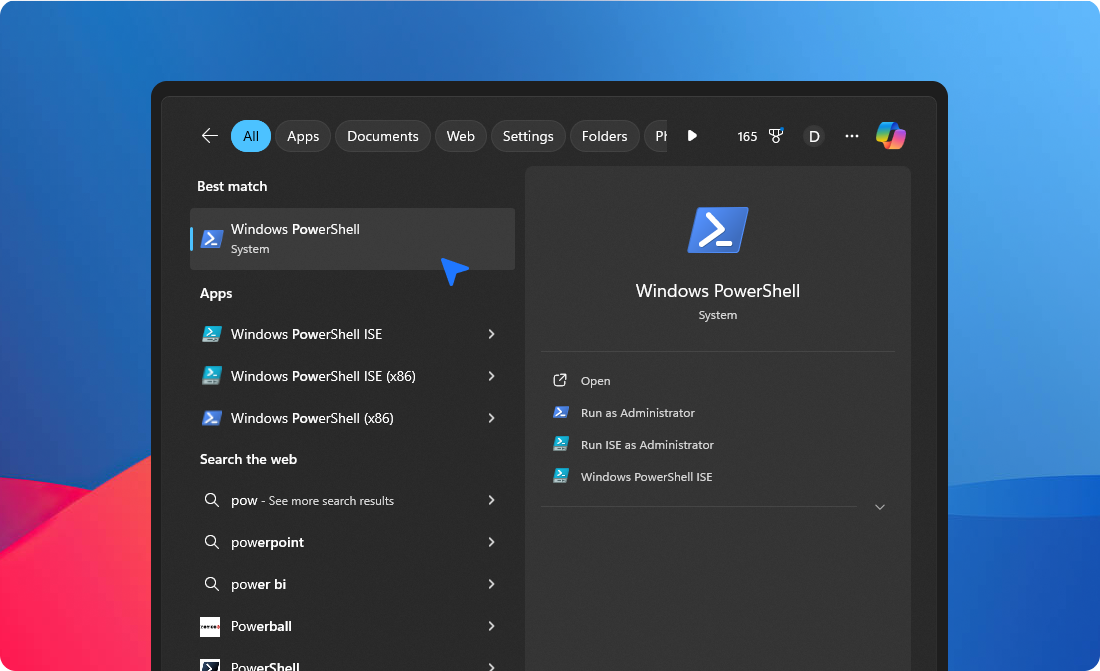
* Open **PowerShell** > **Run** this command:
{% code overflow="wrap" %}
```
(Get-NetIPConfiguration | Where-Object { $_.IPv4DefaultGateway -ne $null -and $_.NetAdapter.Status -eq 'Up' }).IPv4Address.IPAddress
```
{% endcode %}
* Then you’ll see the current **LAN IP** address of your computer.
{% hint style="danger" %}
If nothing is returned, please contact our support team for help.
{% endhint %}
## Step 2: Open 9Proxy and Select the Correct IP
* Launch the **9Proxy App** on your computer.
* Select the **LAN IP** address you just found from the list in the app — you’ll find it in the Port section at the end of the **Proxy List**.
* Make sure the **API Port** is correctly configured in the **API Reference** section of the app.
## Step 3: Test The Connection
Now it’s time to test the connection on your other devices (phones, tablets, etc.).
{% stepper %}
{% step %}
Open the browser on the second device.
{% endstep %}
{% step %}
In the address bar, enter: `http://:/api/port_status?t=2`
* Replace `` with your computer’s IP address from **Step 1**.
* Replace `` with your configured proxy port.
{% endstep %}
{% endstepper %}
If everything is set up correctly, you’ll see this response:
```
{
"error": false,
"message": "Success",
"data": [
{
"address": ":60000",
"city": "Westlands",
"public_ip": "197.***.***.**",
"online": true
}
]
}
```
Once both devices are connected to the same local network (**LAN**), you can configure the proxy on your other devices by using the **LAN IP** address and the port that you’ve set up in the **9Proxy App**.
## Troubleshooting
No Response or Timeout Error?
* Ensure all devices are on the same Wi-Fi/network.
* Temporarily disable any firewall or VPN software on your computer.
* Double-check the IP and port settings.
* Try refreshing or using another browser.
Still not working? **Contact support**, and we’ll help you troubleshoot!