> For the complete documentation index, see [llms.txt](https://docs.9proxy.com/llms.txt). Markdown versions of documentation pages are available by appending `.md` to page URLs; this page is available as [Markdown](https://docs.9proxy.com/integrations/gb-based-residential-proxies/proxy-managers/foxyproxy.md).
# Foxyproxy
Use this guide to quickly connect your 9Proxy residential proxy to the **FoxyProxy** extension in Chrome.
## Before you begin
Download the **FoxyProxy** extension from the [Chrome Web Store](https://chrome.google.com/webstore/detail/foxyproxy) and install it in your browser.
## Step-by-Step Setup
{% stepper %}
{% step %}
#### Open the Extension Options
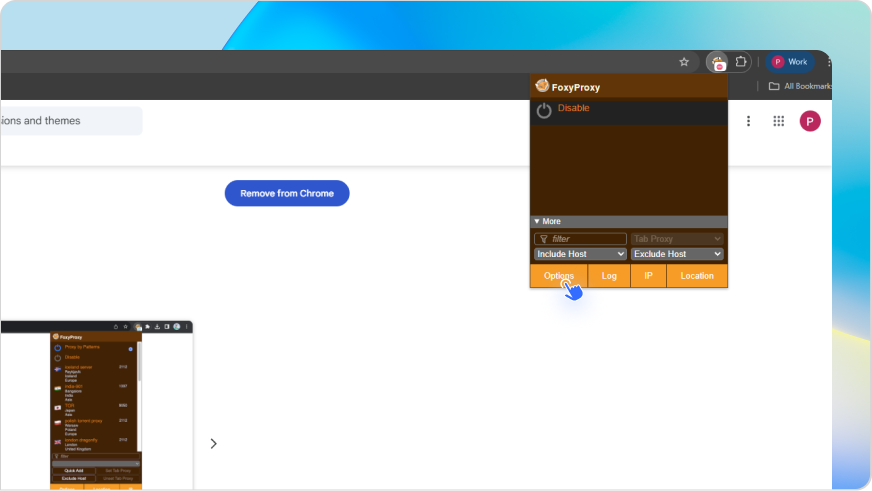
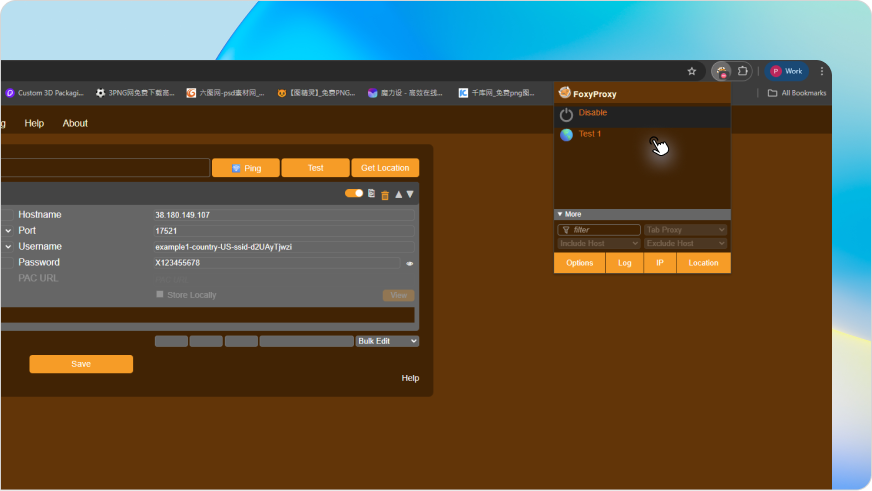
After installing, click the **FoxyProxy** icon in your Chrome toolbar and select “**Options**.”
{% endstep %}
{% step %}
#### Add a New Proxy
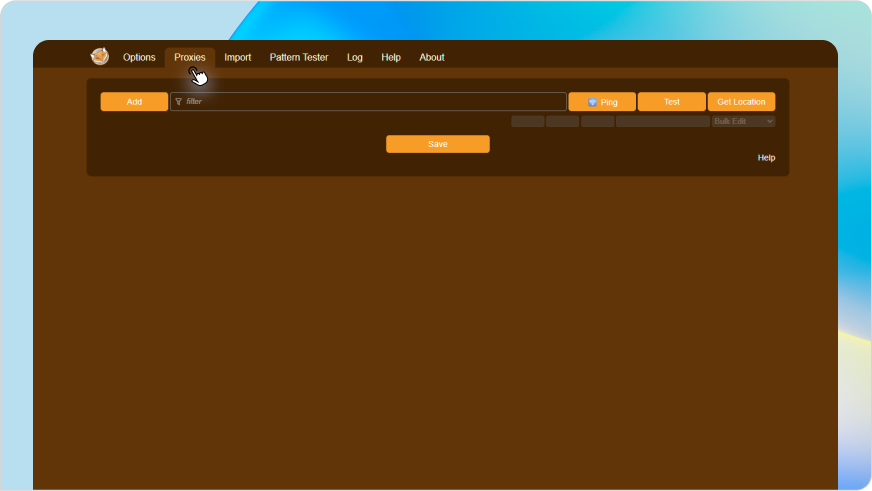
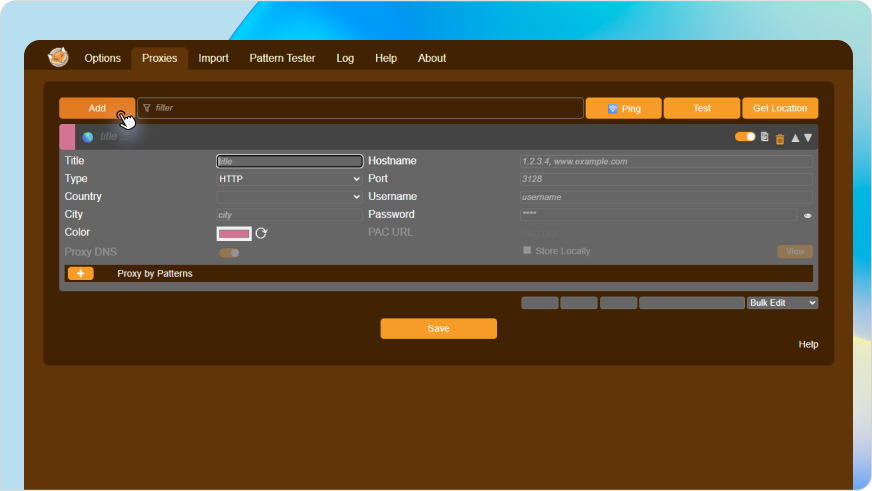
Go to the Proxies tab and click “**Add**” to create a new proxy profile.
{% endstep %}
{% step %}
#### Enter Your Proxy Details
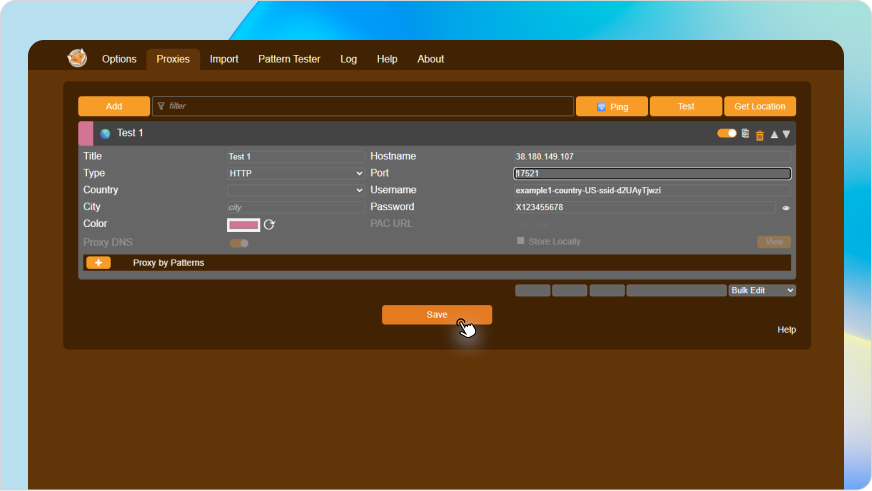
Fill in the following fields:
| Field | What to Enter |
| ---------- | ------------------------------------------------- |
| Title | A name for this proxy (e.g., “9Proxy US”) |
| Proxy Type | Select HTTP, HTTPS, or SOCKS5 based on your setup |
| Hostname | Your 9Proxy IP address (e.g., 38.180.149.107) |
| Port | Your 9Proxy port (e.g., 17521) |
| Username | Structured 9Proxy username (see format below) |
| Password | Your sub-account password |
**Username Format**
{% code overflow="wrap" %}
```
-country--st--city--isp--ssid--sst-
```
{% endcode %}
{% hint style="info" %}
### NOTE
If you haven’t created a sub-user or generated a proxy yet, please create one [here](https://9proxy.com/dashboard/residential-proxy-gb?tab=get-proxy) before proceeding.
{% endhint %}
**Example:**
* **Hostname**: 38.180.149.107
* **Port**: 17521v
* **Username**: useruser123-country-US-ssid-rhdN1907ma
* **Password**: X12345678
{% endstep %}
{% step %}
#### Save and Activate
Click “**Save**” to store your proxy profile.
To start using it:
* Click the **FoxyProxy** icon in Chrome
* Select your newly added proxy from the drop-down list
{% endstep %}
{% endstepper %}
## Verify It's Working
Visit to confirm that your IP has changed and is routing through 9Proxy.
Need help? Contact our support team anytime — we’re here to assist!
---
# Agent Instructions
This documentation is published with GitBook. GitBook is the documentation platform designed so that both humans and AI agents can read, navigate, and reason over technical content effectively. Learn more at gitbook.com.
## Querying This Documentation
If you need additional information that is not directly available in this page, you can query the documentation dynamically by asking a question.
Perform an HTTP GET request on the current page URL with the `ask` query parameter, and the optional `goal` query parameter:
```
GET https://docs.9proxy.com/integrations/gb-based-residential-proxies/proxy-managers/foxyproxy.md?ask=&goal=
```
`ask` is the immediate question: it should be specific, self-contained, and written in natural language.
`goal` is optional and describes the broader end goal you are ultimately trying to accomplish on behalf of the user. GitBook uses it to tailor the answer towards what is most useful for that goal.
The response will contain a direct answer to the question and relevant excerpts and sources from the documentation.
Use this mechanism when the answer is not explicitly present in the current page, you need clarification or additional context, or you want to retrieve related documentation sections.