> For the complete documentation index, see [llms.txt](https://docs.9proxy.com/llms.txt). Markdown versions of documentation pages are available by appending `.md` to page URLs; this page is available as [Markdown](https://docs.9proxy.com/integrations/gb-based-residential-proxies/proxy-managers/hidemyacc.md).
# Hidemyacc
Use this guide to connect your 9Proxy Residential Proxies to **Hidemyacc**, giving each browser profile a unique, undetectable identity with high IP trust.
## 1. Before You Begin
Make sure you have already:
* Created a 9Proxy **sub-account**
* Generated an active proxy session
Not sure how? View the proxy setup guide [here](https://docs.9proxy.com/getting-started/residential-proxy-by-gb/proxy-generation).
## 2. Getting Started
* Download the **Hidemyacc** app from the [official website](https://hidemyacc.com/)
* Register your account directly in the app. Registration must be done inside the app. Signing up via browser won't work.
## 3. Configure Your Proxy
{% stepper %}
{% step %}
### Create a New Profile
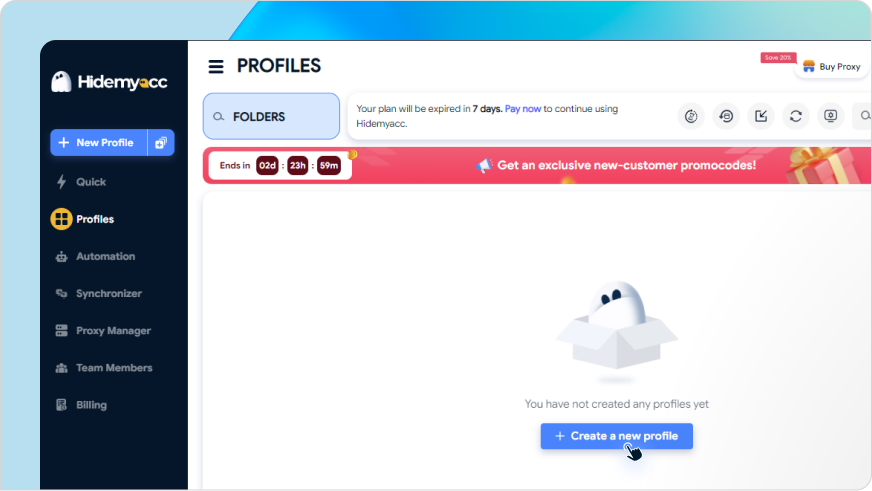
Once logged in, click "Create new profile" on the dashboard. You’ll be directed to the full profile configuration page.
{% hint style="info" %}
TIP
You can check all the customizable browser settings available for this profile by clicking [here](https://docs.hidemyacc.com/?_gl=1*33wbwq*_gcl_au*MzAwMTI1NDEuMTcyNjIwMTA3Nw..*_ga*NjA4MDk0NzM3LjE3MjYyMDEwNzc.*_ga_N9X6D2Y20T*MTcyODg3NjMzMi4yLjEuMTcyODg3Njk0NC41OS4wLjA.).
{% endhint %}
{% endstep %}
{% step %}
### Navigate to Proxy Tab
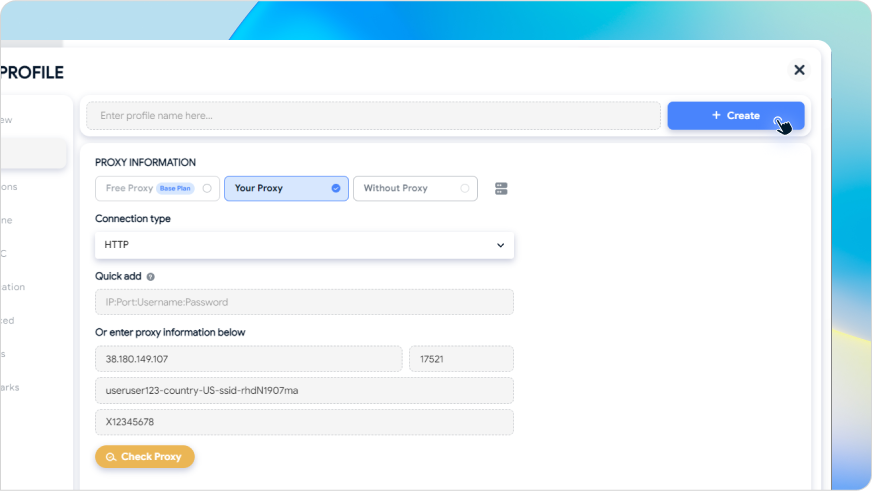
Click on the “Proxy” tab, then choose “Your Proxy” to begin setup.
{% endstep %}
{% step %}
### Enter Your Proxy Details
Select your preferred proxy protocol: HTTP, HTTPS, or SOCKS5.
Then input the proxy details into the correct fields:
| Field | What to Enter |
| -------- | --------------------------------------------- |
| Host | Your proxy IP (e.g., 38.180.149.107) |
| Port | Your proxy port (e.g., 17521) |
| Username | Structured 9Proxy username (see format below) |
| Password | Your 9Proxy sub-account password |
#### Username Format
{% code overflow="wrap" %}
```
-country--st--city--isp--ssid--sst-
```
{% endcode %}
{% hint style="info" %}
NOTE
If you haven’t created a sub-user or generated a proxy yet, please create one [here](https://9proxy.com/dashboard/residential-proxy-gb?tab=get-proxy) before proceeding.
{% endhint %}
#### Example Configuration
* **Host**: 38.180.149.107
* **Port**: 17521
* **Username**: useruser123-country-US-ssid-rhdN1907ma
* **Password**: X12345678
The username includes your proxy targeting settings like country, session ID, etc. For help creating your custom proxy username, refer to [this guide](https://docs.9proxy.com/getting-started/residential-proxy-by-gb/making-requests).
{% endstep %}
{% step %}
### Check Proxy & Save Profile
* Click “Check Proxy” to validate your connection.
* If successful, click “Create” (or “Update”) in the top-right corner.
{% endstep %}
{% endstepper %}
## 4. Launch Your Profile
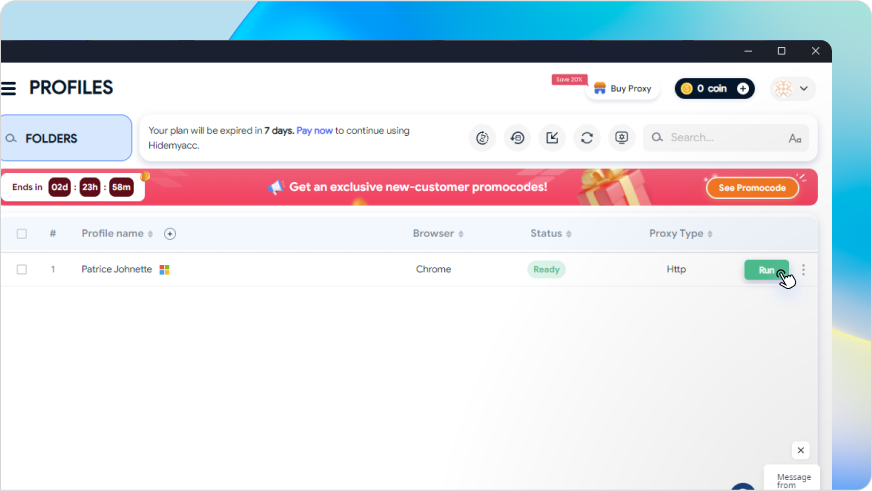
Click “Run” to open the browser with your configured proxy.
Hidemyacc will automatically load an IP checker page so you can verify your IP and fingerprint instantly.
## 5. You’re All Set!
You’ve successfully linked 9Proxy with **Hidemyacc**. Run unlimited profiles with rotating residential IPs and browser fingerprints that mimic real users — ideal for automation, marketing, and stealth tasks.
Need help? Reach out to our support team anytime.
---
# Agent Instructions
This documentation is published with GitBook. GitBook is the documentation platform designed so that both humans and AI agents can read, navigate, and reason over technical content effectively. Learn more at gitbook.com.
## Querying This Documentation
If you need additional information that is not directly available in this page, you can query the documentation dynamically by asking a question.
Perform an HTTP GET request on the current page URL with the `ask` query parameter, and the optional `goal` query parameter:
```
GET https://docs.9proxy.com/integrations/gb-based-residential-proxies/proxy-managers/hidemyacc.md?ask=&goal=
```
`ask` is the immediate question: it should be specific, self-contained, and written in natural language.
`goal` is optional and describes the broader end goal you are ultimately trying to accomplish on behalf of the user. GitBook uses it to tailor the answer towards what is most useful for that goal.
The response will contain a direct answer to the question and relevant excerpts and sources from the documentation.
Use this mechanism when the answer is not explicitly present in the current page, you need clarification or additional context, or you want to retrieve related documentation sections.