> For the complete documentation index, see [llms.txt](https://docs.9proxy.com/llms.txt). Markdown versions of documentation pages are available by appending `.md` to page URLs; this page is available as [Markdown](https://docs.9proxy.com/integrations/gb-based-residential-proxies/proxy-managers/mulogin.md).
# Mulogin
Use this guide to integrate 9Proxy Residential Proxies with **MuLogin**, enabling safe and anonymous multi-account browser management.
## Before You Continue
Make sure you’ve already:
* Created a sub-user in your 9Proxy dashboard
* Generated an active proxy session
Need help? Follow our [Proxy Setup Guide](https://docs.9proxy.com/getting-started/residential-proxy-by-gb/proxy-generation).
{% stepper %}
{% step %}
#### Install MuLogin
Download MuLogin from the[ official website](https://www.mulogin.com/), then install and launch the application on your device.
{% endstep %}
{% step %}
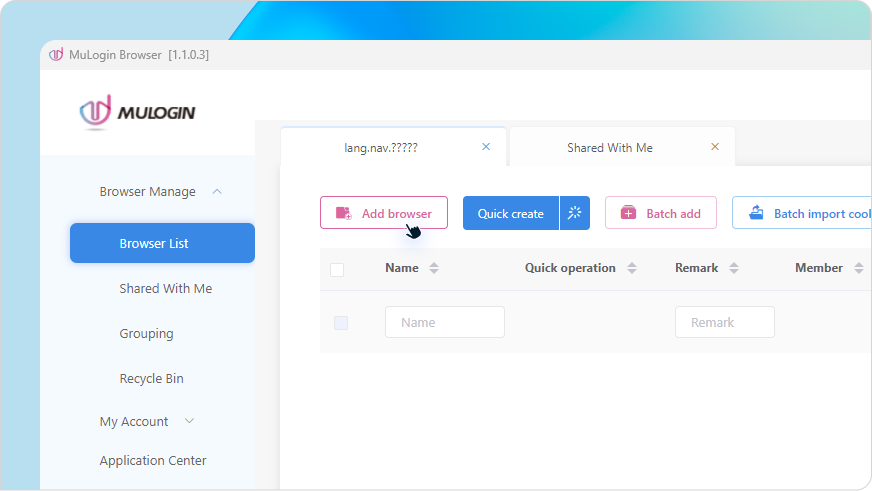
#### Add a New Browser Profile
* Click “**Add Browser**”
* You will be taken to the Basic Configuration screen
{% endstep %}
{% step %}
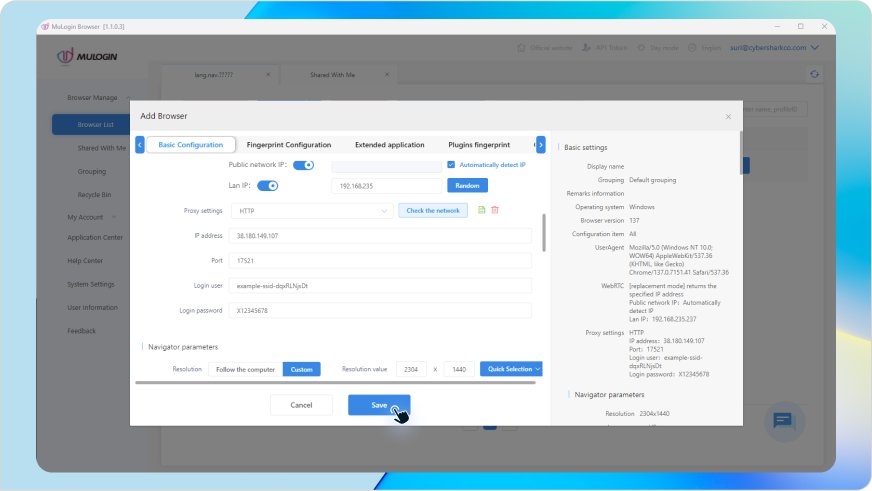
#### Configure Your Proxy Settings
* Select HTTP as your proxy protocol
* Enter your proxy credentials in the fields provided:
Field
What to Enter
IP Address
Your 9Proxy IP (e.g., 38.180.149.107)
Port
Your 9Proxy port (e.g., 17521)
Login User
Structured 9Proxy username (see format below)
Login Password
Your 9Proxy sub-account password
**Username Format**
{% code overflow="wrap" %}
```
-country--st--city--isp--ssid--sst-
```
{% endcode %}
{% hint style="info" %}
### NOTE
If you haven’t created a sub-user or generated a proxy yet, please create one [here](https://9proxy.com/dashboard/residential-proxy-gb?tab=get-proxy) before proceeding.
{% endhint %}
**Example Configuration:**
* **IP Address**: 38.180.149.107
* **Port**: 17521
* **Login User**: useruser123-country-US-ssid-rhdN1907ma
* **Login Password**: X12345678
{% hint style="info" %}
The username includes your proxy targeting settings like country, session ID, etc. For help creating your custom proxy username, refer to [this guide](https://docs.9proxy.com/getting-started/residential-proxy-by-gb/making-requests).
{% endhint %}
{% endstep %}
{% step %}
#### Save the Configuration
* Enter a Display Name for your browser profile
* Scroll down and click “**Save**”
{% endstep %}
{% endstepper %}
## That’s It!
Your **MuLogin** profile is now connected to 9Proxy . You’re ready to run accounts safely with residential IPs and unique browser fingerprints.
Need assistance? Our support team is here for you 24/7.
---
# Agent Instructions
This documentation is published with GitBook. GitBook is the documentation platform designed so that both humans and AI agents can read, navigate, and reason over technical content effectively. Learn more at gitbook.com.
## Querying This Documentation
If you need additional information that is not directly available in this page, you can query the documentation dynamically by asking a question.
Perform an HTTP GET request on the current page URL with the `ask` query parameter, and the optional `goal` query parameter:
```
GET https://docs.9proxy.com/integrations/gb-based-residential-proxies/proxy-managers/mulogin.md?ask=&goal=
```
`ask` is the immediate question: it should be specific, self-contained, and written in natural language.
`goal` is optional and describes the broader end goal you are ultimately trying to accomplish on behalf of the user. GitBook uses it to tailor the answer towards what is most useful for that goal.
The response will contain a direct answer to the question and relevant excerpts and sources from the documentation.
Use this mechanism when the answer is not explicitly present in the current page, you need clarification or additional context, or you want to retrieve related documentation sections.