> For the complete documentation index, see [llms.txt](https://docs.9proxy.com/llms.txt). Markdown versions of documentation pages are available by appending `.md` to page URLs; this page is available as [Markdown](https://docs.9proxy.com/integrations/ip-based-residential-proxies/proxy-managers/proxifier.md).
# Proxifier
## Getting Started
Before you begin:
* Ensure you have [downloaded and installed Proxifier](https://www.proxifier.com/download/) on your device.
* Confirm that you have successfully [port-forwarded your proxy](https://docs.9proxy.com/getting-started/residential-proxy-by-ips/for-macos-windows/configure-proxy) for proper functionality.
## Proxy Setup
{% stepper %}
{% step %}
Open Proxifier, click “**Profile**”, and select “**Proxy Servers**”.
{% endstep %}
{% step %}
Click “**Add**” to create a new proxy entry.
{% endstep %}
{% step %}
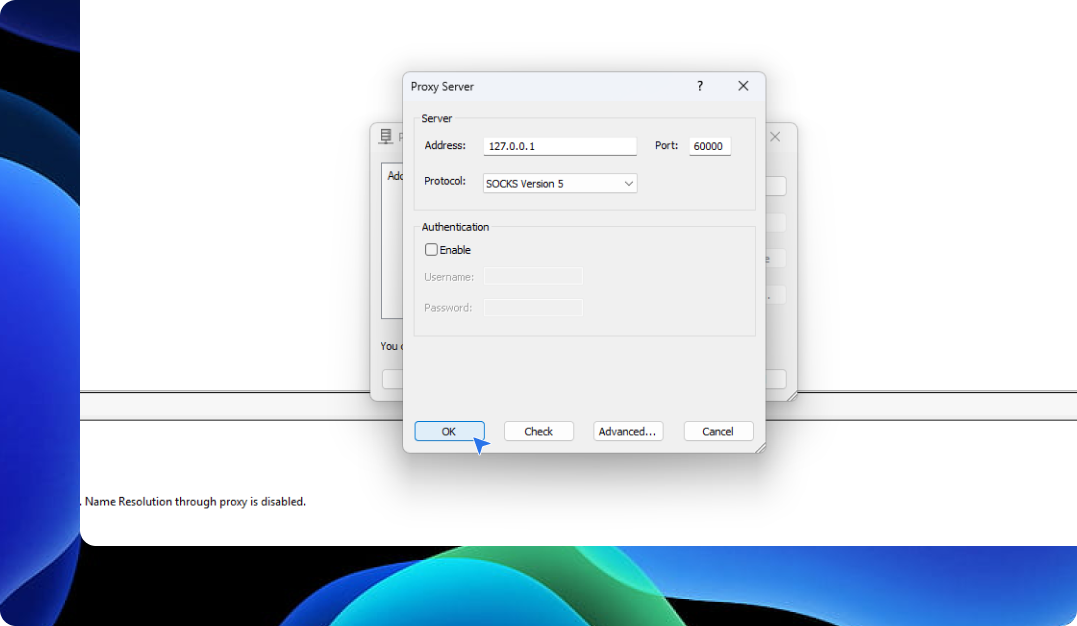
In the **Address** field, enter your **Local IP**.
{% endstep %}
{% step %}
In the **Port** field, enter the forwarded port.
{% endstep %}
{% step %}
Under **Protocol**, select “**SOCKS Version 5**”, then click “**OK**” to save.
{% endstep %}
{% endstepper %}
## Confirm Your Proxy is Working
To verify that your proxy is correctly set up, visit[ ipinfo.io](https://ipinfo.io/what-is-my-ip) and check if your IP address has changed.