> For the complete documentation index, see [llms.txt](https://docs.9proxy.com/llms.txt). Markdown versions of documentation pages are available by appending `.md` to page URLs; this page is available as [Markdown](https://docs.9proxy.com/integrations/ip-based-residential-proxies/using-9proxy-on-two-or-more-devices.md).
# Using 9Proxy on two or more devices
Looking to use your 9Proxy connection on multiple devices like phones, tablets, or additional computers? Follow this easy step-by-step guide.
## Before You Begin
Make sure:
* Both your computer (running the 9Proxy App) and the other device (e.g., iPhone/iPad/Android devices) are on the same local network (LAN).
* Your firewall or VPN isn’t blocking connections between devices.
## Step 1: Find the LAN IP Address of Your Computer
You’ll need your computer’s **LAN IP** address to connect other devices to the proxy.
### For macOS
There are 2 ways to find your Mac’s internal IP address:
Option 1: System Settings
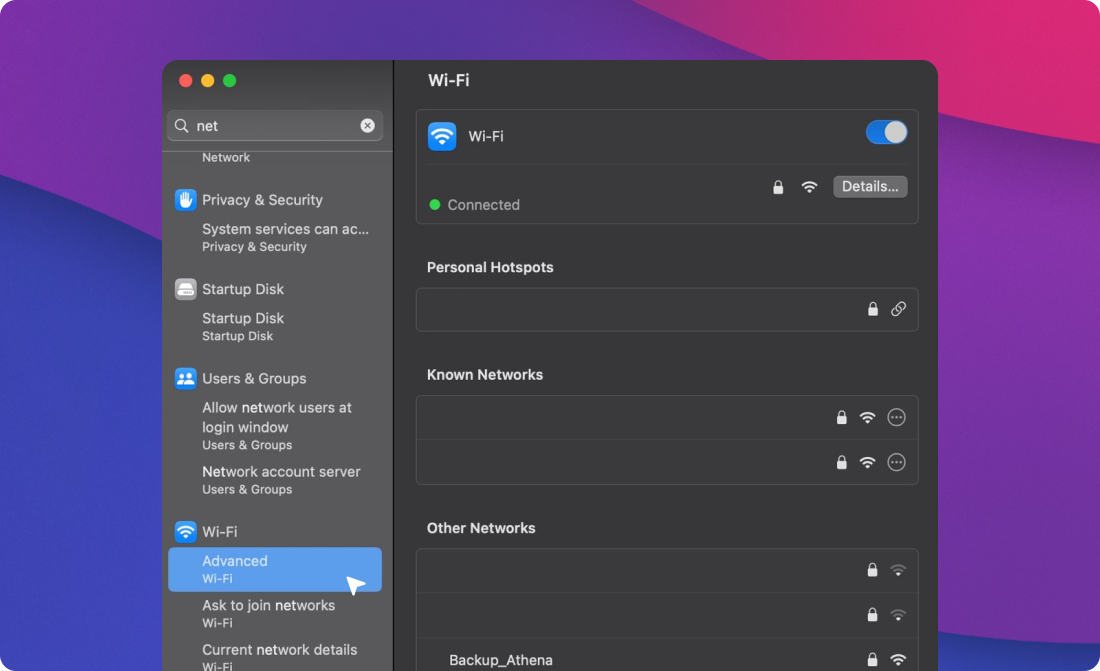
* Open **System Settings**.
* Go to **Network**.
* Make sure you’re connected to the correct Wi-Fi (your router’s name).
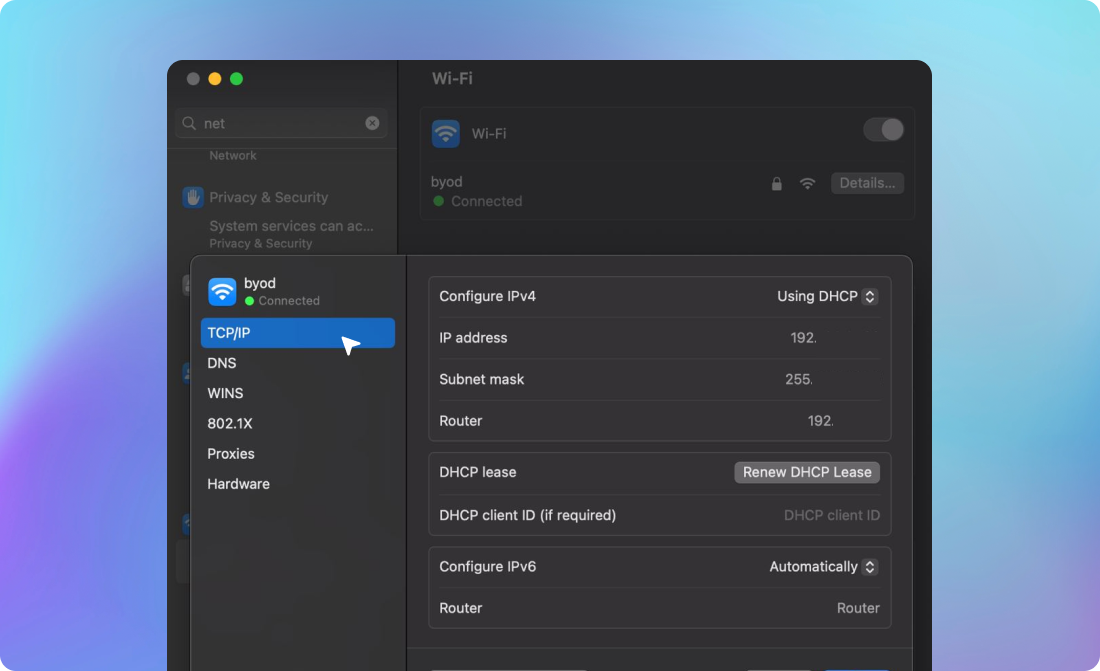
* Click **Advanced** > **TCP/IP**.
* Your IP address will appear under I**Pv4 Address**.
Option 2: Terminal
* Open **Spotlight**, type **Terminal**, and hit **Enter**.
* Type the command:
```
ipconfig getifaddr
```
* Your **LAN IP** will be shown.
* (Optional) To check your public IP, use:
```
curl ifconfig.me
```
### For Windows
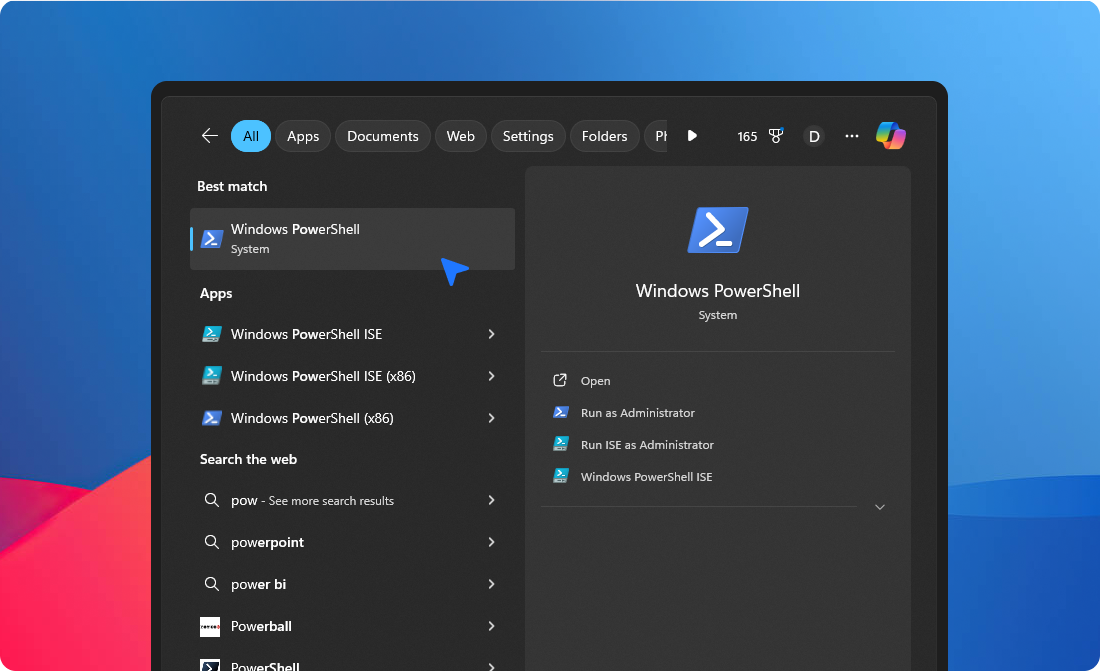
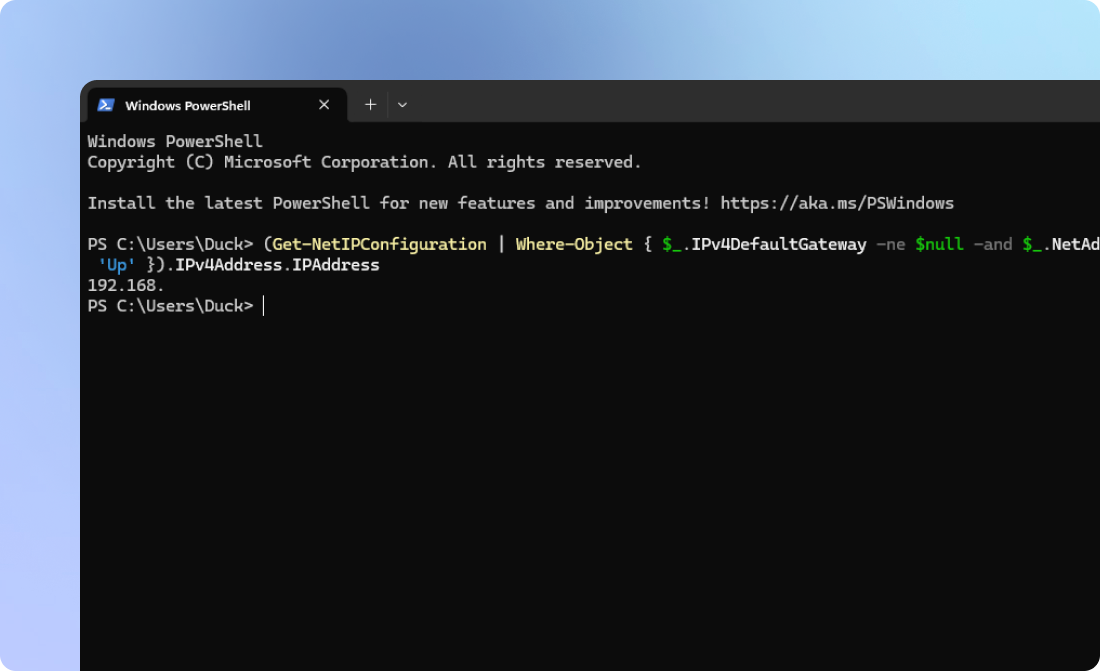
* Open **PowerShell** and run this command:
{% code overflow="wrap" %}
```
(Get-NetIPConfiguration | Where-Object { $_.IPv4DefaultGateway -ne $null -and $_.NetAdapter.Status -eq 'Up' }).IPv4Address.IPAddress
```
{% endcode %}
* Then you’ll see the current **LAN IP** address of your computer.
{% hint style="danger" %}
If nothing is returned, please contact our support team for help.
{% endhint %}
## Step 2: Open 9Proxy and Select the Correct IP
* Launch the **9Proxy App** on your computer.
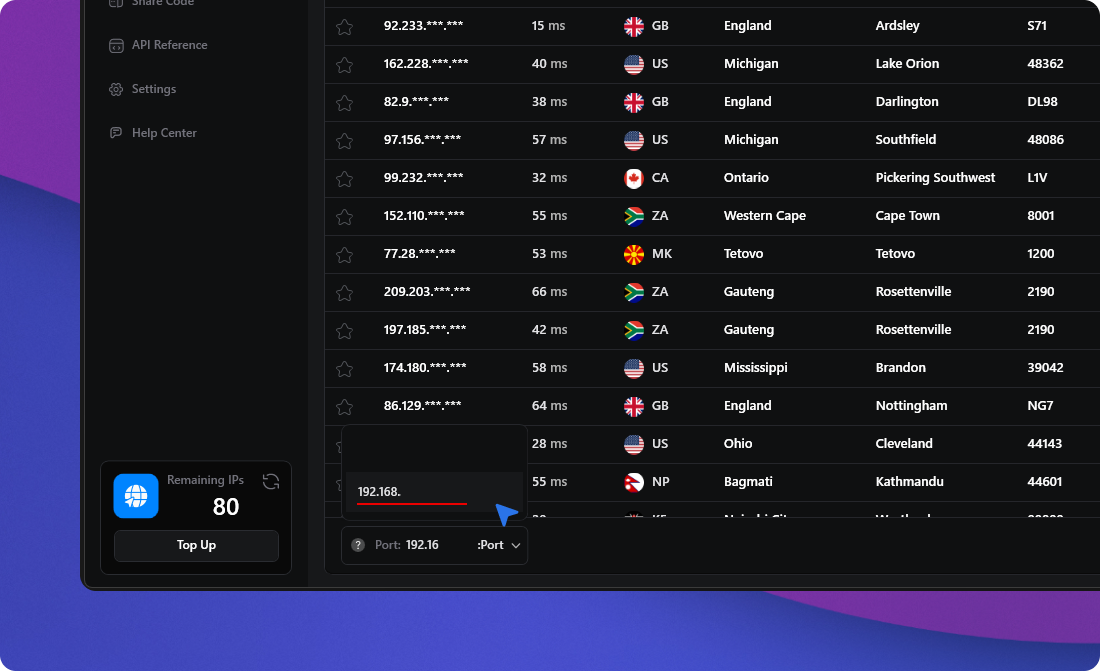
* Select the **LAN IP** address you just found from the list in the app — you’ll find it in the Port section at the end of the **Proxy List**.
* Make sure the **API Port** is correctly configured in the **API Reference** section of the app.
## Step 3: Test The Connection
Now it’s time to test the connection on your other devices (phones, tablets, etc.).
{% stepper %}
{% step %}
Open the browser on the second device.
{% endstep %}
{% step %}
In the address bar, enter:
`http://:/api/port_status?t=2`
* Replace `` with your computer’s IP address from **Step 1**.
* Replace `` with your configured proxy port (10101).
{% endstep %}
{% endstepper %}
If everything is set up correctly, you’ll see this response:
```
{
"error": false,
"message": "Success",
"data": [
{
"address": ":60000",
"city": "Westlands",
"public_ip": "197.***.***.**",
"online": true
}
]
}
```
Once both devices are connected to the same local network (**LAN**), you can configure the proxy on your other devices by using the **LAN IP** address and the port that you’ve set up in the **9Proxy App**.
## Troubleshooting
No Response or Timeout Error?
* Ensure all devices are on the same Wi-Fi/network.
* Temporarily disable any firewall or VPN software on your computer.
* Double-check the IP and port settings.
* Try refreshing or using another browser.
Still not working? Contact support, and we’ll help you troubleshoot.
---
# Agent Instructions
This documentation is published with GitBook. GitBook is the documentation platform designed so that both humans and AI agents can read, navigate, and reason over technical content effectively. Learn more at gitbook.com.
## Querying This Documentation
If you need additional information that is not directly available in this page, you can query the documentation dynamically by asking a question.
Perform an HTTP GET request on the current page URL with the `ask` query parameter, and the optional `goal` query parameter:
```
GET https://docs.9proxy.com/integrations/ip-based-residential-proxies/using-9proxy-on-two-or-more-devices.md?ask=&goal=
```
`ask` is the immediate question: it should be specific, self-contained, and written in natural language.
`goal` is optional and describes the broader end goal you are ultimately trying to accomplish on behalf of the user. GitBook uses it to tailor the answer towards what is most useful for that goal.
The response will contain a direct answer to the question and relevant excerpts and sources from the documentation.
Use this mechanism when the answer is not explicitly present in the current page, you need clarification or additional context, or you want to retrieve related documentation sections.