> For the complete documentation index, see [llms.txt](https://docs.9proxy.com/llms.txt). Markdown versions of documentation pages are available by appending `.md` to page URLs; this page is available as [Markdown](https://docs.9proxy.com/proxyhub/proxyhub-pro.md).
# ProxyHub Pro (Multi-device Control)
**ProxyHub Pro** allows you to manage multiple mobile devices and their proxies directly from your computer using the 9Proxy app.
Instead of configuring each phone manually, you can view all connected devices in one place and assign, change, or remove proxies remotely.
This is the recommended setup when you are working with multiple devices at the same time.
## 1. When should you use this?
Use **ProxyHub Pro** when:
* You are managing multiple phone devices
* You want to assign or change proxies remotely
If you only need to use a proxy on a single phone, you can simply use ProxyHub Lite directly on that device.
## 2. How it works
**ProxyHub Pro** works together with ProxyHub Lite (mobile app):
* **ProxyHub Lite (phone)** runs on your mobile devices
* **ProxyHub Pro (desktop)** lets you manage those devices
Once connected, your mobile devices will appear automatically in **ProxyHub Pro**, and you can control them from your computer.
## 3. Before you begin
Make sure the following conditions are met:
* **ProxyHub Lite** is installed on your phone devices
* The 9Proxy app is installed on your computer
* All devices are signed in to **the same 9Proxy account**
* Your phone devices are online
A device will only appear in **ProxyHub Pro** if it is logged in to ProxyHub Lite using the same account.
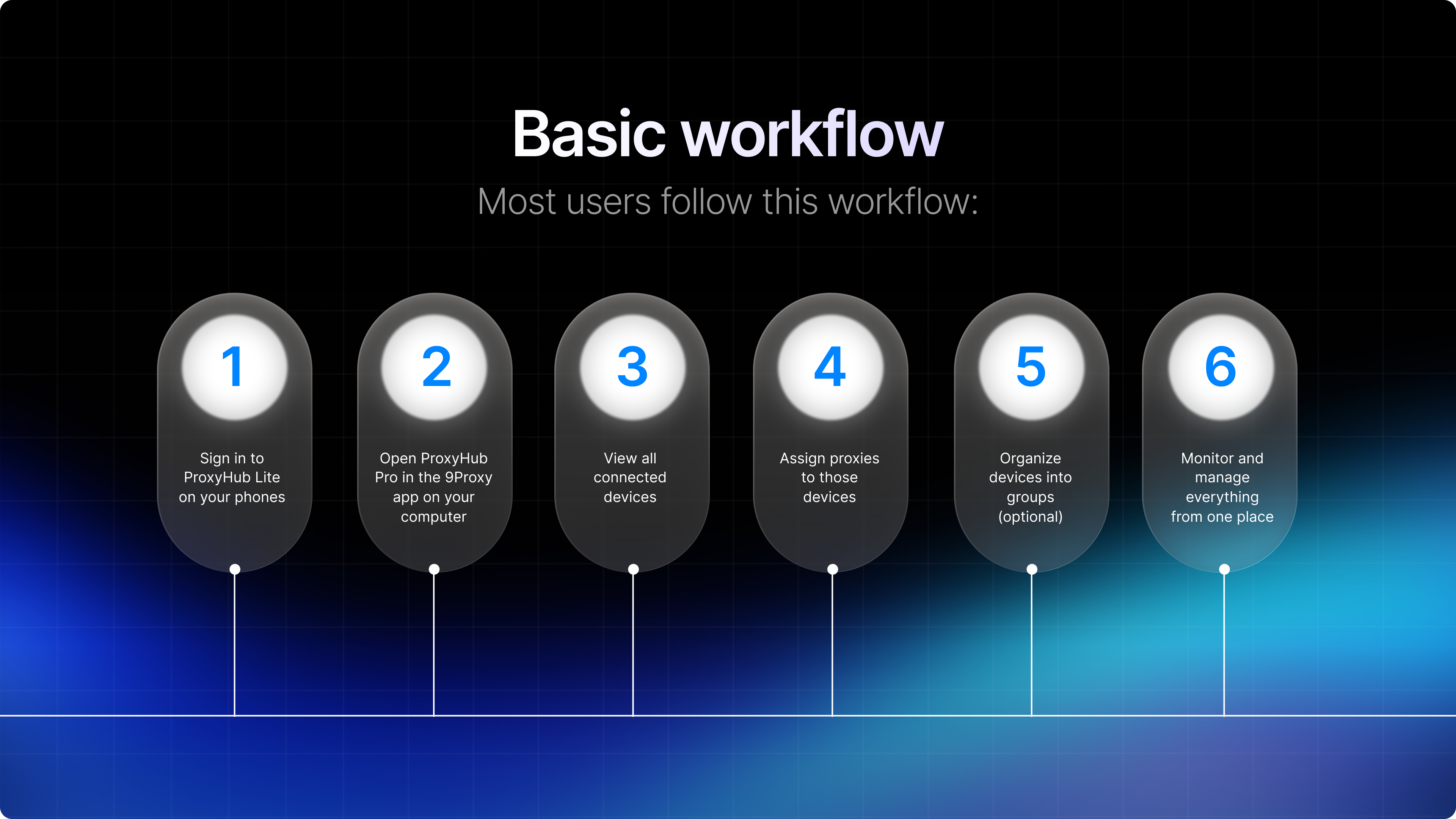
## 4. Basic workflow
## 5. Open and view your devices
{% stepper %}
{% step %}
Open the **9Proxy app** on your computer
{% endstep %}
{% step %}
Sign in with **your 9Proxy account**
{% endstep %}
{% step %}
Select **ProxyHub Pro**
{% endstep %}
{% endstepper %}
You will see a list of all mobile devices currently connected to your account. This is your main dashboard for managing devices remotely.
If you manage many devices, you can filter the list by: **Connection Type** / **Country** / **Device Status**
You can also search for a device using its Device Key.
To find the **Device Key** on a phone:
{% stepper %}
{% step %}
Open **ProxyHub Lite**
{% endstep %}
{% step %}
Go to **Settings**
{% endstep %}
{% step %}
Locate the **Device Key**
{% endstep %}
{% endstepper %}
Use this when you need to identify a specific device among many.
## 6. Organize devices into groups
Groups help you organize and manage multiple devices based on your workflow. For example, you can group devices by purpose such as Facebook accounts, scraping tasks, testing, or daily operations.
Use groups when you are working with many devices and need a clearer structure to manage them efficiently.
{% stepper %}
{% step %}
**Create a group**
In **ProxyHub Pro**, click **Create Group** and enter a name.
The group will act as a container for related devices.
{% endstep %}
{% step %}
**Add a device to a group**
* In the device list, click the three-dot icon
* Select **Add** to
* Choose a group
{% endstep %}
{% step %}
**Move** or **remove a device**
* Use ‘**Move to**’ to transfer a device to another group
* Use Remove to remove it from a group
{% endstep %}
{% endstepper %}
## 7. Assign and manage proxies
You can **assign or change a proxy for any device directly from your computer.**
{% stepper %}
{% step %}
Locate the device
{% endstep %}
{% step %}
Click the forward icon
{% endstep %}
{% step %}
Choose your proxy criteria, such as country, city, state, ZIP code, or ISP
{% endstep %}
{% step %}
Click **Forward**
{% endstep %}
{% endstepper %}
The system will assign a matching proxy to that device.
You do not need to interact with the phone. The proxy is applied remotely through **ProxyHub Pro**.
**To stop using a proxy on a device:**
{% stepper %}
{% step %}
Locate the device
{% endstep %}
{% step %}
Click the red disconnect icon
{% endstep %}
{% endstepper %}
The proxy connection will be removed from that device.
## 8. Auto Refresh Proxy
Auto Refresh Proxy helps maintain a stable connection by automatically replacing a proxy when it goes offline. You can enable or disable this feature for each device depending on your needs.
#### Configure settings
Go to **Auto Refresh Settings** and configure:
* **Delay Time** - time to wait before assigning a new proxy
* **Maximum Refresh** - maximum number of automatic replacements
{% hint style="info" %}
#### Recommendation
Set Delay Time to at least 10 seconds. If the delay is too short, proxies may be replaced too frequently, which can increase usage and reduce your balance faster than expected.
{% endhint %}
## Important Notes
* You can either use a proxy directly on your phone or manage it from ProxyHub Pro, but not both at the same time. Assigning a proxy from ProxyHub Pro will override any current connection on the phone
* If you log out of ProxyHub Lite, the device will no longer appear in ProxyHub Pro
## Troubleshooting
The device does not appear
Check that:
* The phone is logged in to ProxyHub Lite
* The computer is using the same account
Proxy does not connect
Check that:
* The selected location has available proxies
* Another connection mode is not active
Device disappears
This usually means:
* The phone went offline
* The user logged out of ProxyHub Lite
* The account does not match
## FAQs
What’s the difference between ProxyHub Lite and ProxyHub Pro
* ProxyHub Lite runs on your phone and is used to connect and use a proxy directly on that device
* ProxyHub Pro runs on your computer and is used to manage and control multiple devices remotely
Do I need to use both ProxyHub Lite and ProxyHub Pro?
No.
* Use ProxyHub Lite if you only need a proxy on a single phone
* Use ProxyHub Pro if you want to manage multiple devices from your computer You only need both when you want to control your phone remotely from your computer.
How many devices can I manage at once?
No. You can either:
* Use a proxy directly on your phone
* Or manage it from ProxyHub Pro If you assign a proxy from ProxyHub Pro, it will replace any current connection on the phone.
Can I use ProxyHub with emulators or cloud phones?
Yes. ProxyHub supports:
* Real devices
* Emulators
* Cloud phones As long as ProxyHub Lite is installed and logged in, the device can be managed.
Do my devices need to be on the same network?
No. Your devices can be on different networks, locations, or even different countries. As long as they are online and logged in to the same account, they can be managed together
---
# Agent Instructions
This documentation is published with GitBook. GitBook is the documentation platform designed so that both humans and AI agents can read, navigate, and reason over technical content effectively. Learn more at gitbook.com.
## Querying This Documentation
If you need additional information that is not directly available in this page, you can query the documentation by asking a question.
Perform an HTTP GET request on the following URL with the `ask` and `goal` query parameters:
```
GET https://docs.9proxy.com/proxyhub/proxyhub-pro.md?ask=&goal=
```
`ask` is the immediate question: it should be specific, self-contained, and written in natural language.
`goal` is what the user is ultimately trying to achieve, the reason they need the answer. Sharing it helps GitBook give you a better, more relevant answer. A goal is most helpful when it describes the outcome the user wants rather than restating the question. For example, with `ask=how do I create an API token`, a goal like `automate deployments from our CI pipeline` lets GitBook tailor the answer to that use case.
The response will contain a direct answer to the question and relevant excerpts and sources from the documentation.
Use this mechanism when the answer is not explicitly present in the current page, you need clarification or additional context, or you want to retrieve related documentation sections.