> For the complete documentation index, see [llms.txt](https://docs.9proxy.com/llms.txt). Markdown versions of documentation pages are available by appending `.md` to page URLs; this page is available as [Markdown](https://docs.9proxy.com/getting-started/residential-proxy-by-ips/for-macos-windows/proxy-program.md).
# Proxy Program
*This feature is currently available on Windows only.*
## 1. Introduction
The **Proxy Program** allows you to route an application’s network traffic through a proxy without the application being aware of it.
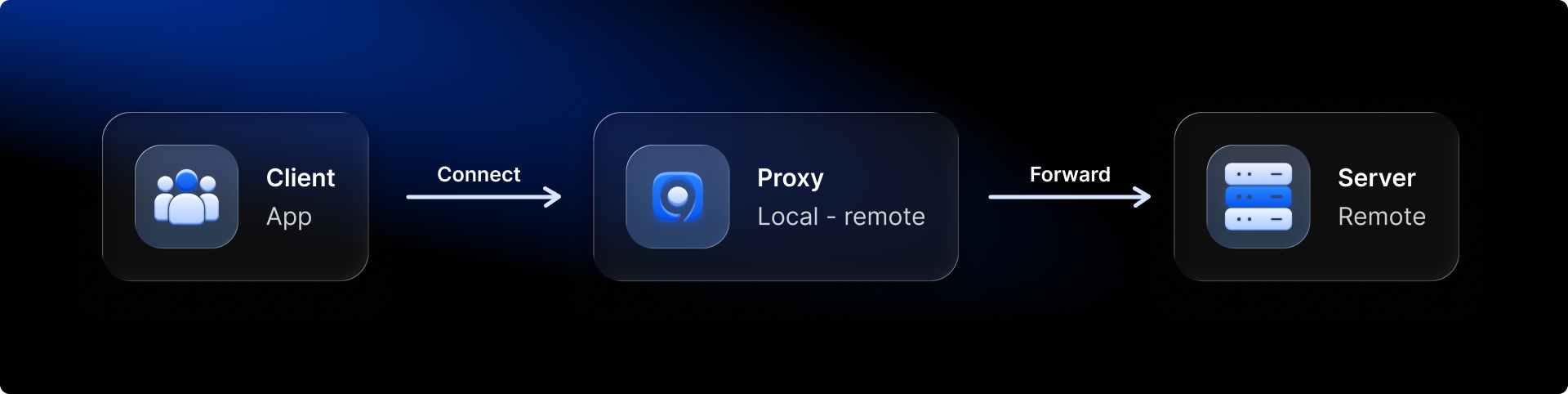
Normally, applications know they are using a proxy because you manually configure proxy settings inside the app. With Transparent Proxy, routing happens silently at the network layer - therefore the process is transparent.
Traditional manual proxy configuration:
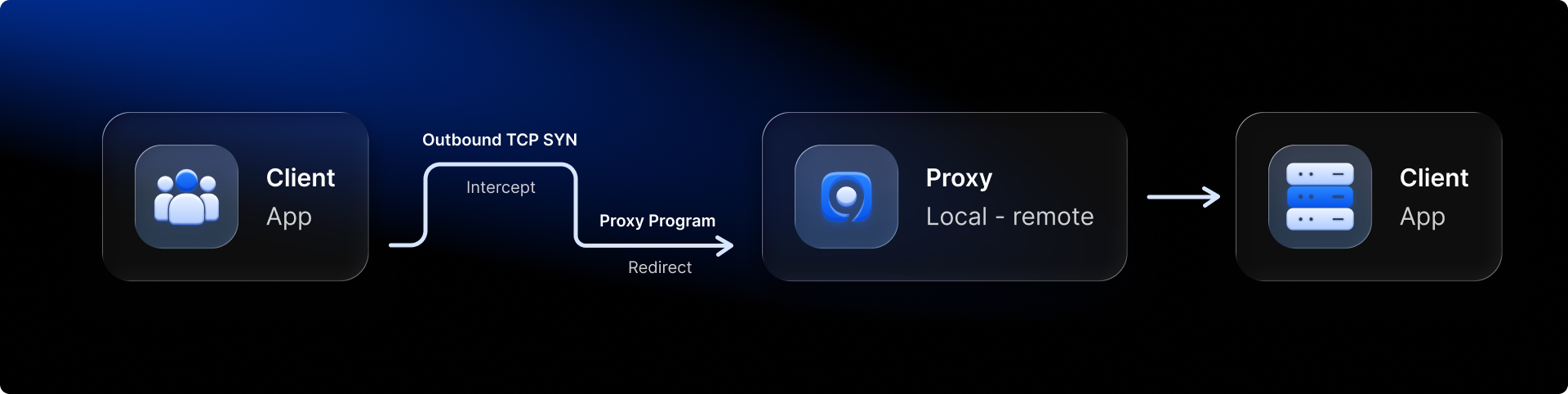
With Transparent Proxy Program:
Instead of the application directly pointing to a proxy server, the system intercepts and redirects its traffic to the proxy port you define.
The app continues to operate normally and has no visibility that its network flow has been altered.
## 2. Why It’s Called “Transparent”
This feature is “transparent” because:
* The application does not know its traffic is routed through a proxy.
* No proxy configuration is required inside the application.
* It works even for applications that do not support proxy settings.
* Routing happens at the system level, ensuring seamless, non-intrusive integration.
This gives you full proxy routing capability without relying on third-party tools or requiring the application to support proxy protocols.
## 3. Benefits
* Works with any application, even those without proxy configuration options.
* Reduces setup complexity for end users or teams.
* Ensures consistent routing behavior across applications.
* Avoids breaks or errors caused by apps detecting or rejecting proxies.
## 4. How to use
You should port-forward a proxy to a local port before using Transparent Proxy.
If you are unsure how to do this, please refer to the port forwarding guide.
{% stepper %}
{% step %}
### Open Proxies Program
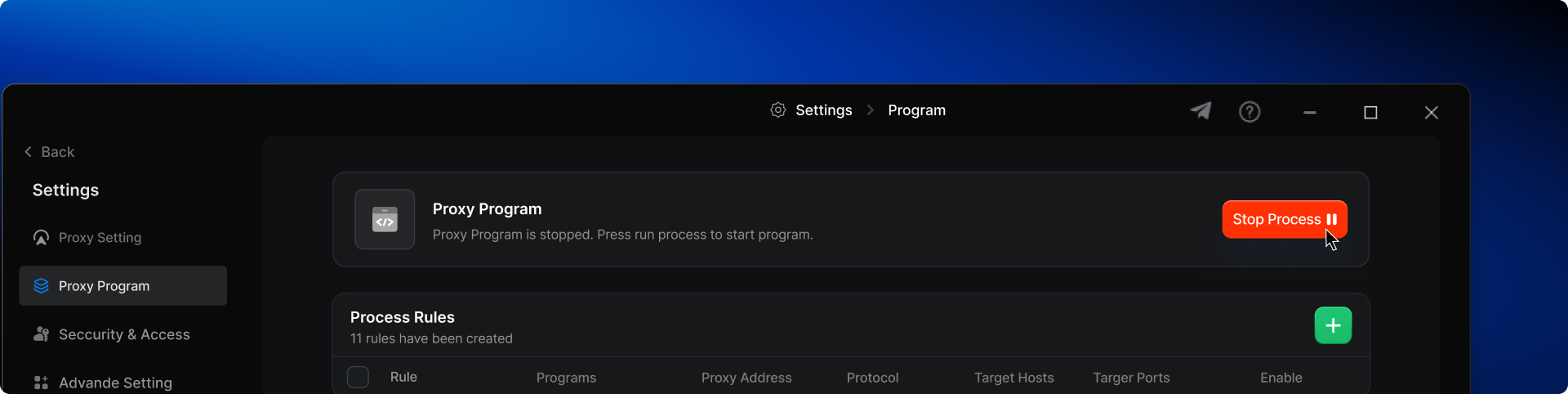
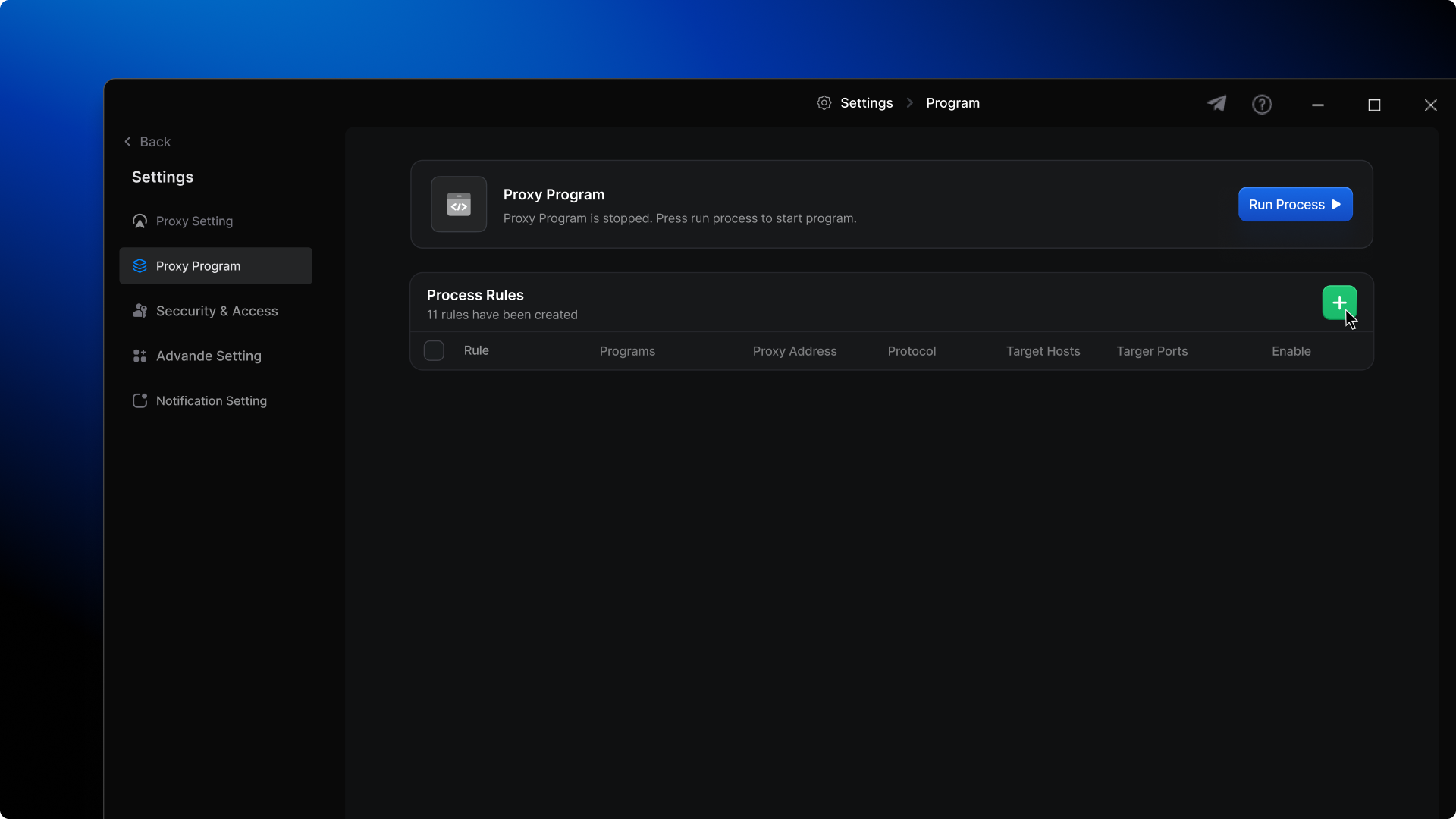
Inside the 9Proxy application, select Proxies Program from the menu.
{% endstep %}
{% step %}
### Create Proxy Rules
To use Proxy Program, you need to configure Proxy Rules.
Rules determine which applications will be routed through which proxy port, including protocol and optional advanced filters.
You may create multiple rules for different apps or use cases.
Click + to create a new rule.
{% endstep %}
{% step %}
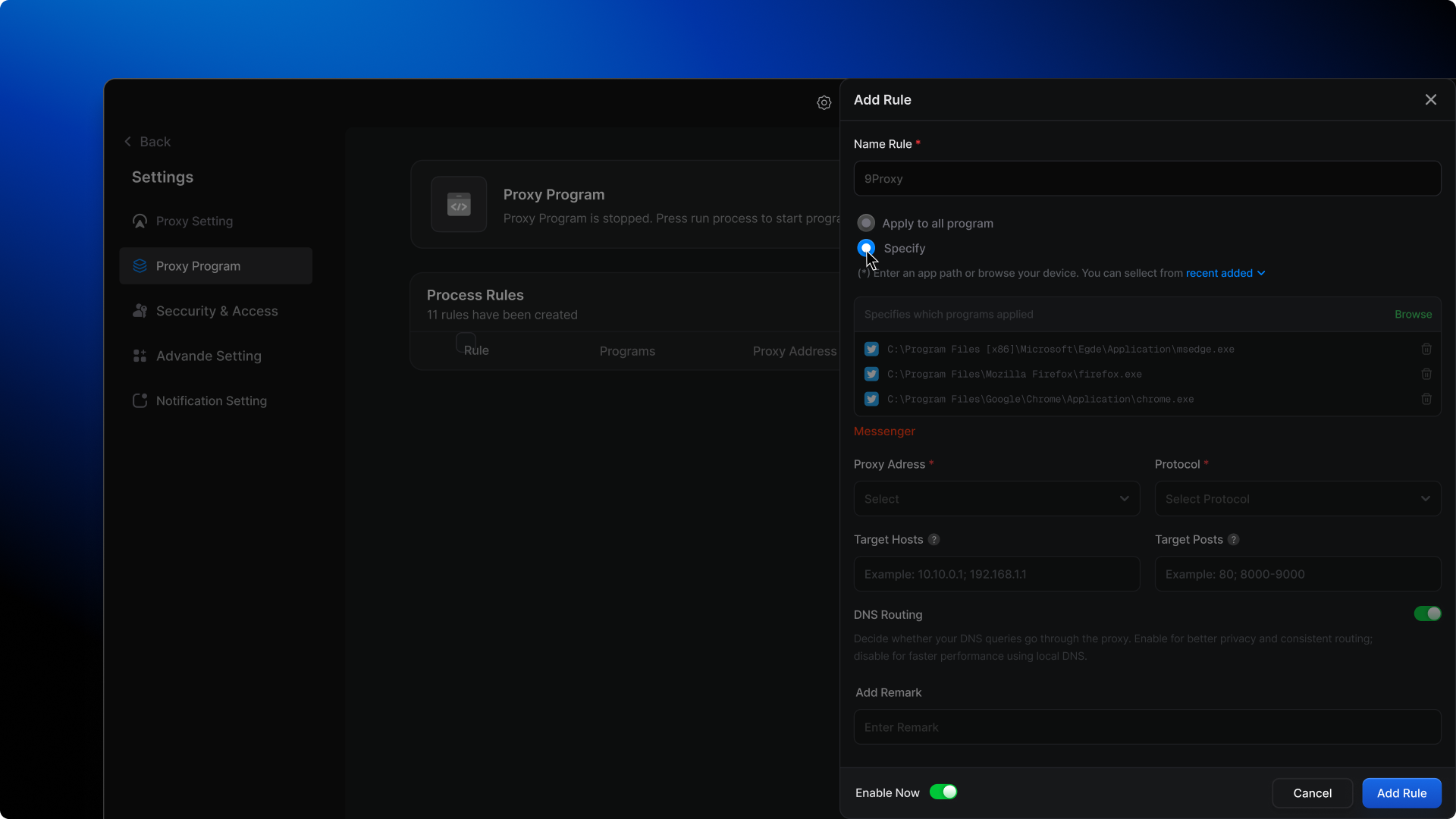
### Configuring a Proxy Rule
#### Rule Name (required)
Give your rule a clear name, such as “Chrome via Proxy” or “Game TCP Route”.
#### Apply Mode
You can choose one of two modes:
* Apply to all programs: This rule applies to every application in the OS.
* Specify: This rule applies only to selected applications.
If choosing Specify, click Browse and select the application’s executable file (.exe).
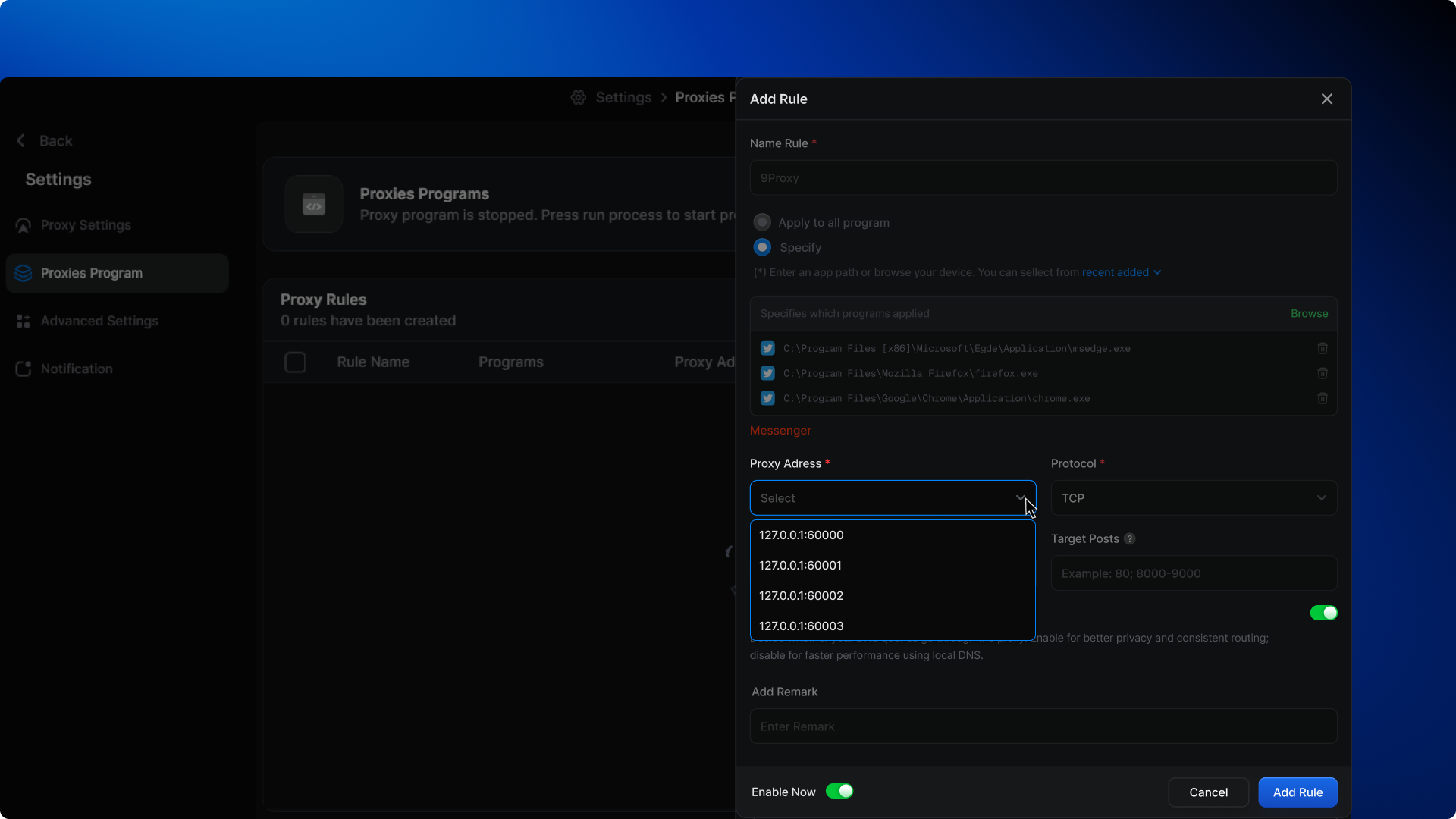
#### Proxy Address (required)
Select the proxy port you forwarded earlier using this format: `localhost:port`
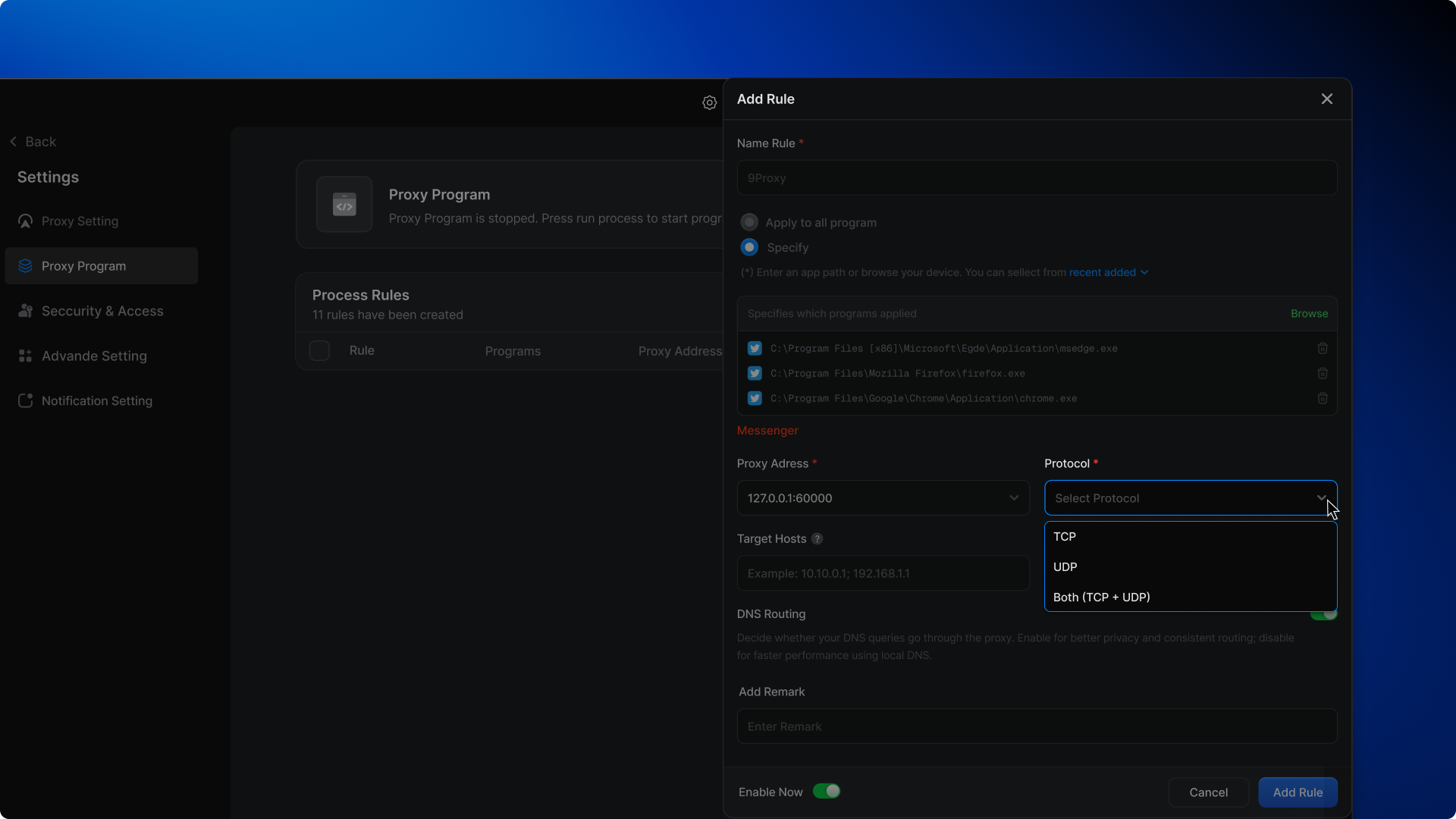
#### Protocol (required)
Select the protocol the application uses:
* TCP
* UDP
* Both (TCP + UDP)
#### Target Hosts (optional)
Defines which destination ports this rule applies to.
* Enter a single port or port ranges.
* Enter \* or leave blank for all ports.
These fields are optional and intended for advanced routing control.
#### Remark (optional)
Add notes for organization or future reference.
{% endstep %}
{% step %}
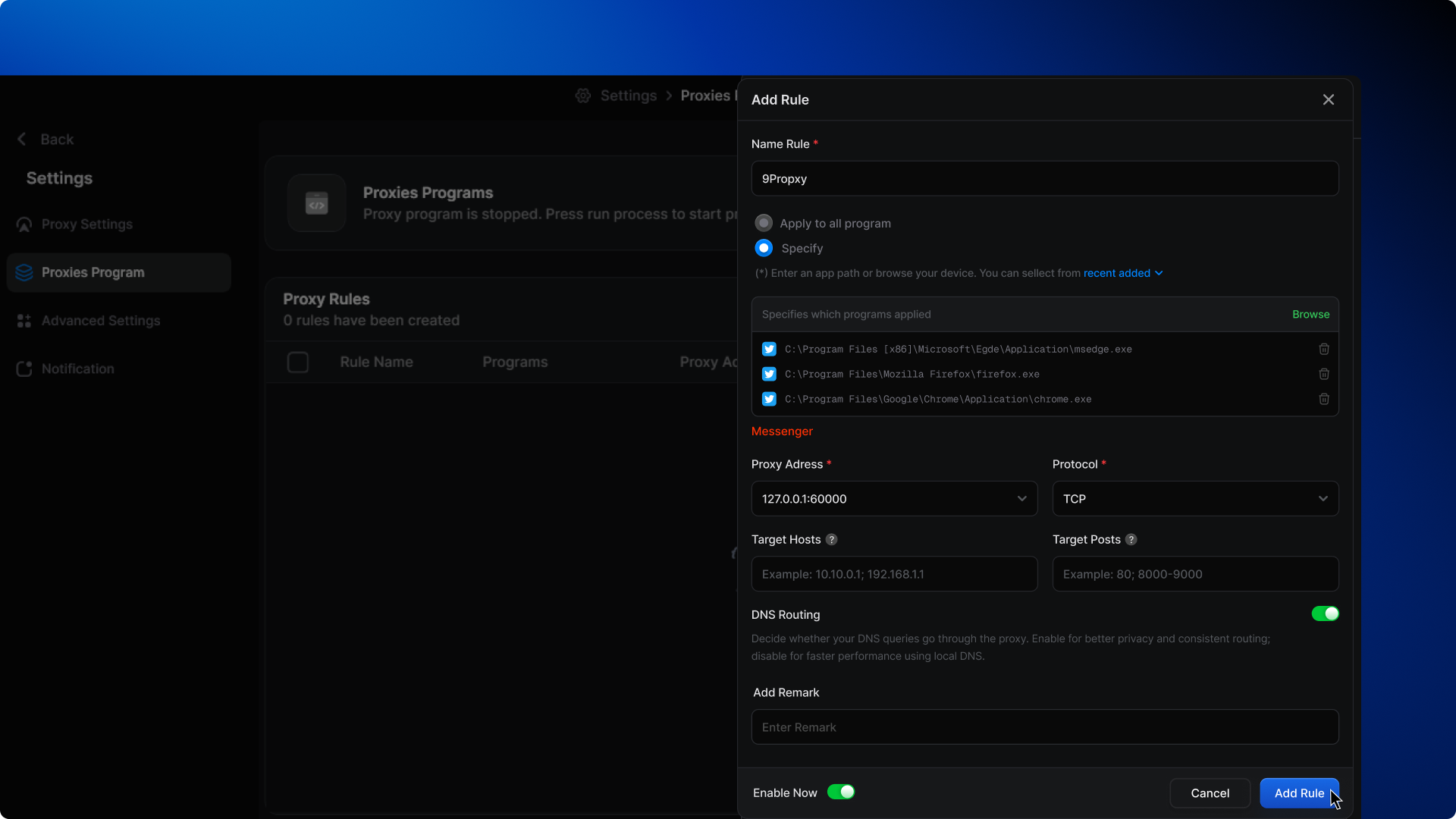
### Add Rule
Click Add Rule to save your configuration.
{% endstep %}
{% endstepper %}
## 5. Notes & Troubleshooting
* Applications do not need internal proxy support; routing is handled at the system level.
* If an app does not route correctly:
Check if the proxy port was forwarded properly.
Confirm the correct executable file was selected.
Ensure firewall rules are not blocking outbound traffic.
* Rules can be enabled, disabled, or reordered as needed.
{% hint style="info" %}
## NOTE
The Proxy Program feature is currently not available on x86 and ARM architectures. Support for x86 and ARM will be added in an upcoming update.
{% endhint %}
{% columns %}
{% column %}
#### Support Channels:
{% endcolumn %}
{% column %}
* **Email**:
* **Live Chat**: Available on[ 9proxy.com](https://9proxy.com)
* **Telegram**: @Official9Proxy
{% endcolumn %}
{% endcolumns %}
---
# Agent Instructions
This documentation is published with GitBook. GitBook is the documentation platform designed so that both humans and AI agents can read, navigate, and reason over technical content effectively. Learn more at gitbook.com.
## Querying This Documentation
If you need additional information that is not directly available in this page, you can query the documentation dynamically by asking a question.
Perform an HTTP GET request on the current page URL with the `ask` query parameter, and the optional `goal` query parameter:
```
GET https://docs.9proxy.com/getting-started/residential-proxy-by-ips/for-macos-windows/proxy-program.md?ask=&goal=
```
`ask` is the immediate question: it should be specific, self-contained, and written in natural language.
`goal` is optional and describes the broader end goal you are ultimately trying to accomplish on behalf of the user. GitBook uses it to tailor the answer towards what is most useful for that goal.
The response will contain a direct answer to the question and relevant excerpts and sources from the documentation.
Use this mechanism when the answer is not explicitly present in the current page, you need clarification or additional context, or you want to retrieve related documentation sections.